Send to Jira
One issue, or a whole story with its sub-tasks: project, type, parent and assignee, created when you decide and never deleted.
Sending is the last step of the meeting pipeline — Recording → Transcript → Summary → Actions → Jira — and it is always a decision, never an automatic side effect. A single action can become one issue; a group can become a story with its sub-tasks or an epic with its stories, created in one go in the right place.
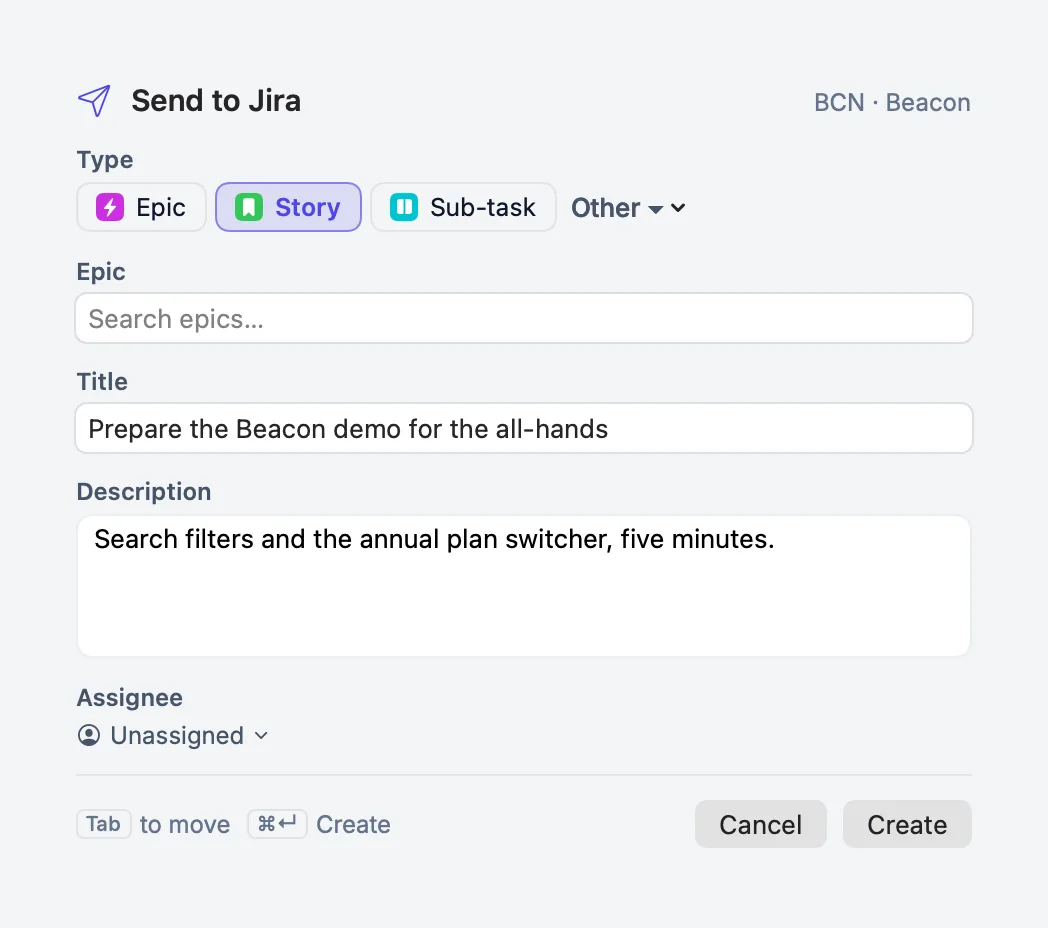
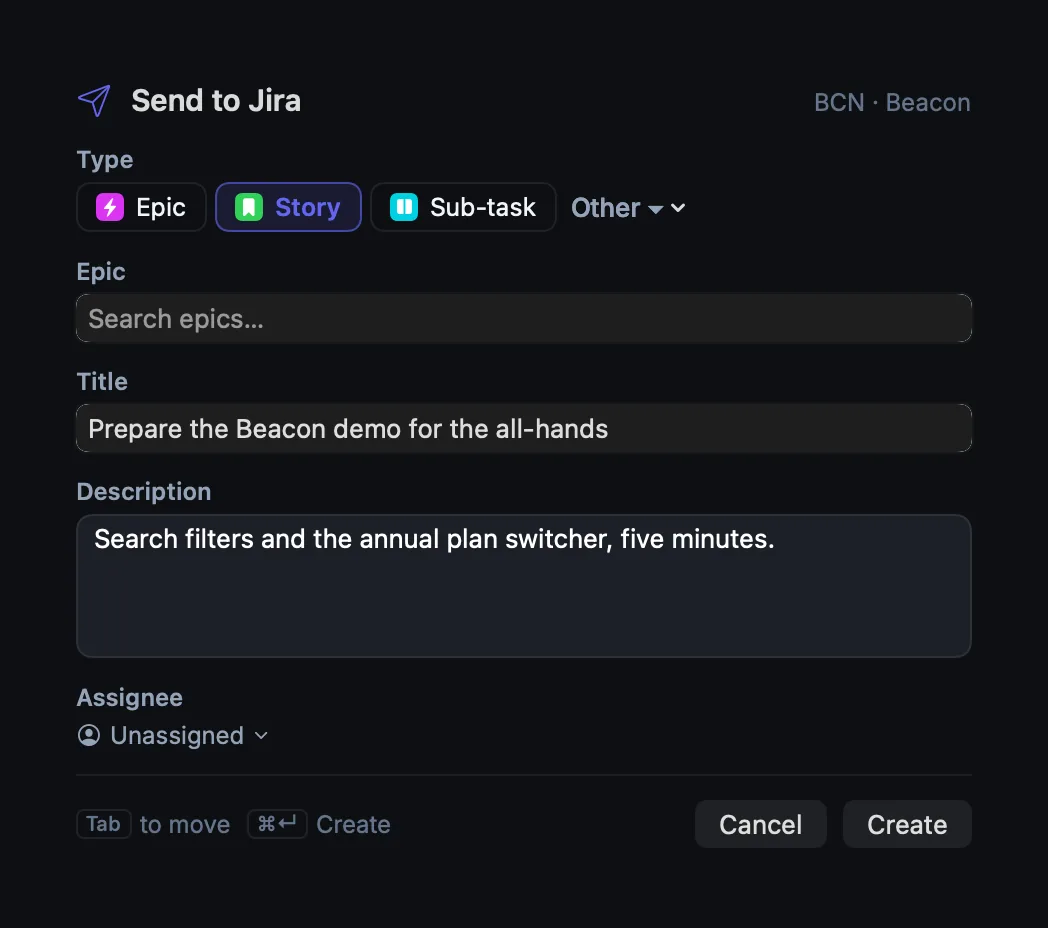
How to use it
One issue.
- Use Send to Jira on a meeting action, or right-click a to-do → Send to Jira…, or press ⌘J in the inspector.
- In the sheet, choose the project and the type — Epic, Story or Subtask, with 1, 2 and 3 — and check the epic or story it will hang under.
- The summary and description are prefilled from the action and, where available, the meeting passage. The issue is Unassigned unless you name someone. The source item's owner, when the board's people know that name, is offered as a quiet hint — Suggested: … — click to assign — never preselected.
- Press ⌘↵ or Create. If the description is still being written, the button reads Waiting… and Send Now sends without it.
A group.
- Group or merge the items first (see To-dos).
- Choose Send Group to Jira… on the parent.
- Pick project and type. A story is created with its sub-tasks, or an epic with its stories.
- Sub-to-dos that already have a key are linked into the new issue rather than created twice.
An issue that did not come from a meeting. + → New Jira Issue… in the To-dos header.
Settings
| Setting | Where | Notes |
|---|---|---|
| Enable editing in Jira | Settings → Jira → Editing | Creating issues is an edit; the switch is described on Create and edit tickets |
| Note in the issue description where it came from | Settings → Jira → Creating issues | On by default. The sonavia-… label the app uses to find the issue again is always added |
What is stored
| Item | Where |
|---|---|
| The issue itself | Jira |
| The local record of what was created, and how to undo an assign, status or title change | ~/Library/Application Support/Sonavia/jira.sqlite3 |
| What the issue carries | The sonavia-… label, and — unless you switch it off — a "Created from PrivateGoat (sonavia-…)" line at the end of the description |
What leaves your Mac
Only what you send, and only when you send it. The issue fields, project and parent go to Atlassian through
the app's Jira connection at https://mcp.atlassian.com/v2/mcp, using the account signed in through
Atlassian's browser sign-in. Nothing goes anywhere else. Nothing goes to Jira until you send it.
When it is off or fails
- No Jira account: Send to Jira is not shown on meetings or to-dos and ⌘J does nothing; actions become local to-dos. Connect Jira to add it.
- Signed out with the copy kept: the send asks you to sign in again.
- An expired token: the app renews it. If a real sign-in is needed, the sheet keeps the draft and offers Sign in again… next to Try again.
- A read-only Atlassian grant: it cannot create issues; reconnecting in Settings → Jira asks for editing.
- Deleting: there is no delete. PrivateGoat never deletes Jira issues, and the MCP server has no Jira write tool at all.
Related
- Create and edit tickets — the editing switch and the local change log.
- The local copy — where the cached issue appears immediately.
- The suggestion inbox — the step before this one.