Create and edit tickets
Create, assign and move tickets from the app. Every change is recorded on the Mac first and can be undone.
Creating and changing tickets is part of the app, not a browser detour: a new issue from the tree, the board or the Daily Scrum, a status chip or an assignee changed in place. Each change is recorded locally first, so a mistake can be taken back, and one switch turns editing off.
How to use it
| Task | How |
|---|---|
| Create an issue | ⌘N in the Daily Scrum view, the + controls on the board and tree, or + → New Jira Issue… in To-dos |
| Create a subtask | Right-click a story → New subtask under <key> (the Daily Scrum says Add Subtask…) |
| Change status | Click the status chip on a card or in the detail pane |
| Change assignee | Click the assignee avatar |
| Change a title | Right-click → Edit Title… (F2, in the tree and the Daily Scrum; the board has no F2) |
| Send a to-do or a meeting action | See Send to Jira |
Creation asks for a project, a type — Epic, Story or Subtask, with 1, 2 and 3 — and a parent where the type needs one. After a change, the local copy updates immediately.
Settings
| Setting | Where | Notes |
|---|---|---|
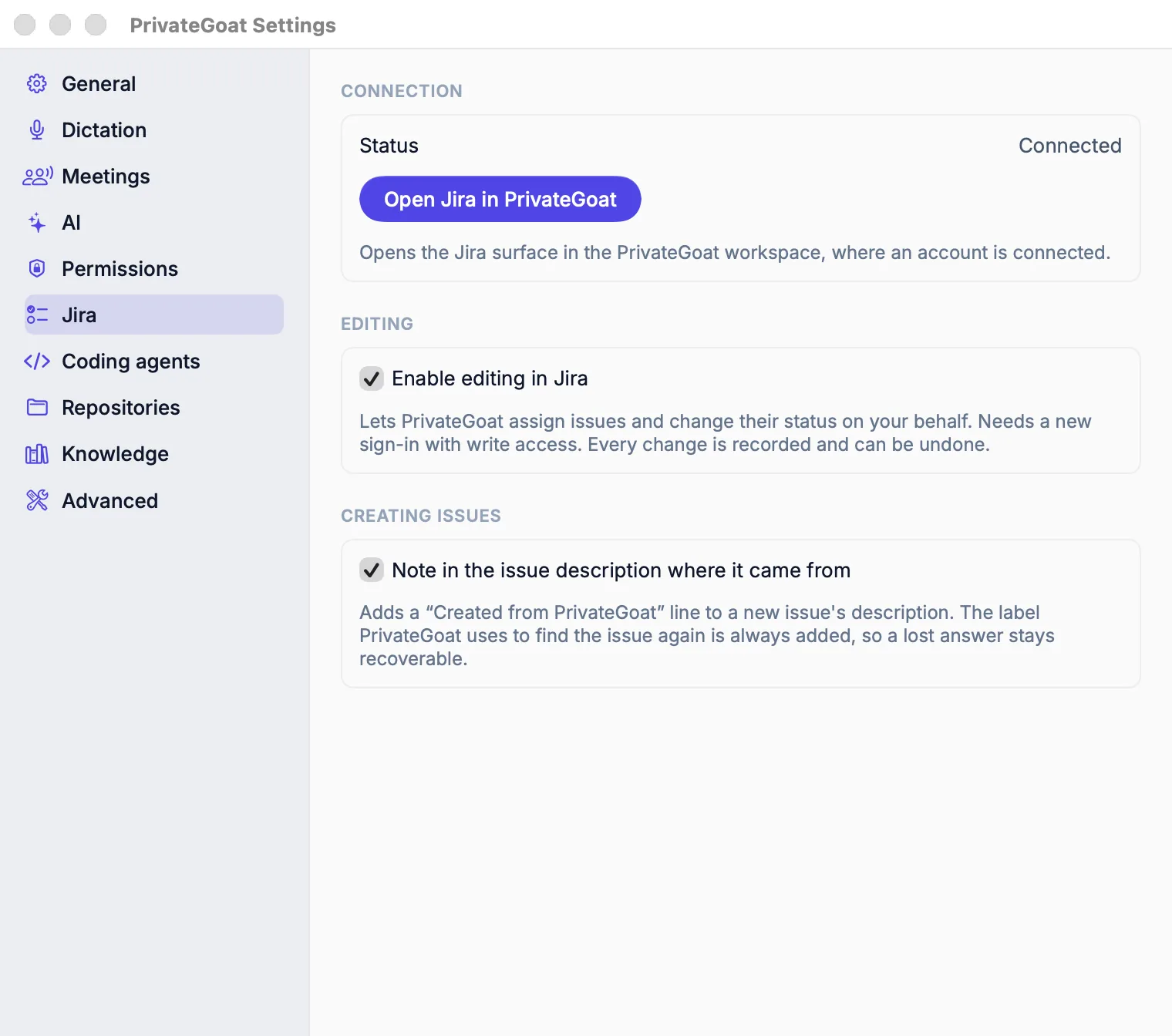
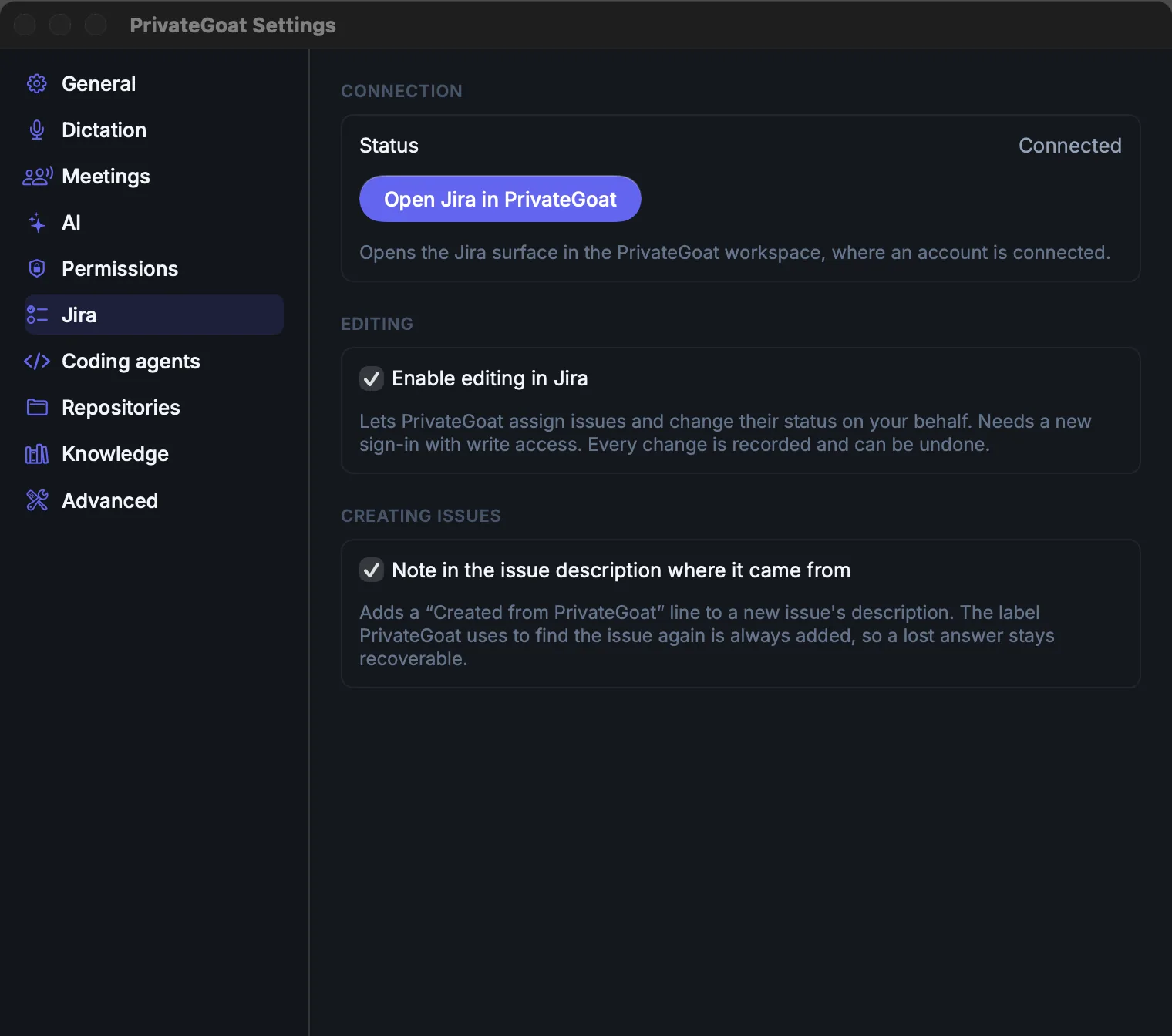
| Enable editing in Jira | Settings → Jira → Editing | One switch; off means every Jira view is read-only |
| Note in the issue description where it came from | Settings → Jira → Creating issues | On by default; adds a "Created from PrivateGoat (…)" line. The label the app searches for is always sent. |
Editing needs a grant that includes the write scope. A grant that is read-only hides the edit controls and says so; reconnecting in Settings → Jira asks for editing.
What is stored
| Item | Where |
|---|---|
| The issue itself and its changed fields | Jira |
| The local record of the change: what was created and how to undo an assign, status or title change | ~/Library/Application Support/Sonavia/jira.sqlite3 (operation ledger) |
| The issue in the cache | The same jira.sqlite3 |
What leaves your Mac
The fields you change, the project and the parent go to Atlassian through the app's Jira connection at
https://mcp.atlassian.com/v2/mcp. Reads come from the local copy. Nothing else receives Jira data, and
PrivateGoat never deletes a Jira issue.
When it is off or fails
- Editing switched off: all Jira views are read-only; the edit controls are not shown.
- A read-only grant: assign, status, title and subtask actions are disabled with an explanation, and reconnecting asks for the write scope.
- A failed write: the change does not apply in Jira, and the local copy stays as it was.
- An expired token: it is renewed; if a real sign-in is needed, the app asks and keeps your draft.
- Deleting: there is no delete tool, here or in the MCP server.
Related
- Send to Jira — creating from a meeting action or a to-do.
- Tree and board — where the edit controls live.
- Connect Jira — the sign-in and the scopes it asks for.