Tree and board
Two views over the same tickets: an outline that shows where everything lives, and a board that walks epic to subtask.
Jira is a hierarchy, and the two views in PrivateGoat show it without six page loads. The tree is the outline — project › epic › story › subtask — and the board is a three-column walk down one path of it. Both are built from the local copy, so switching and filtering are instant.
How to use it
Open Jira in the sidebar, then pick Tree or Board in the header. The picker at the left chooses the project or board, with Add Board… and Remove Board.
Tree.
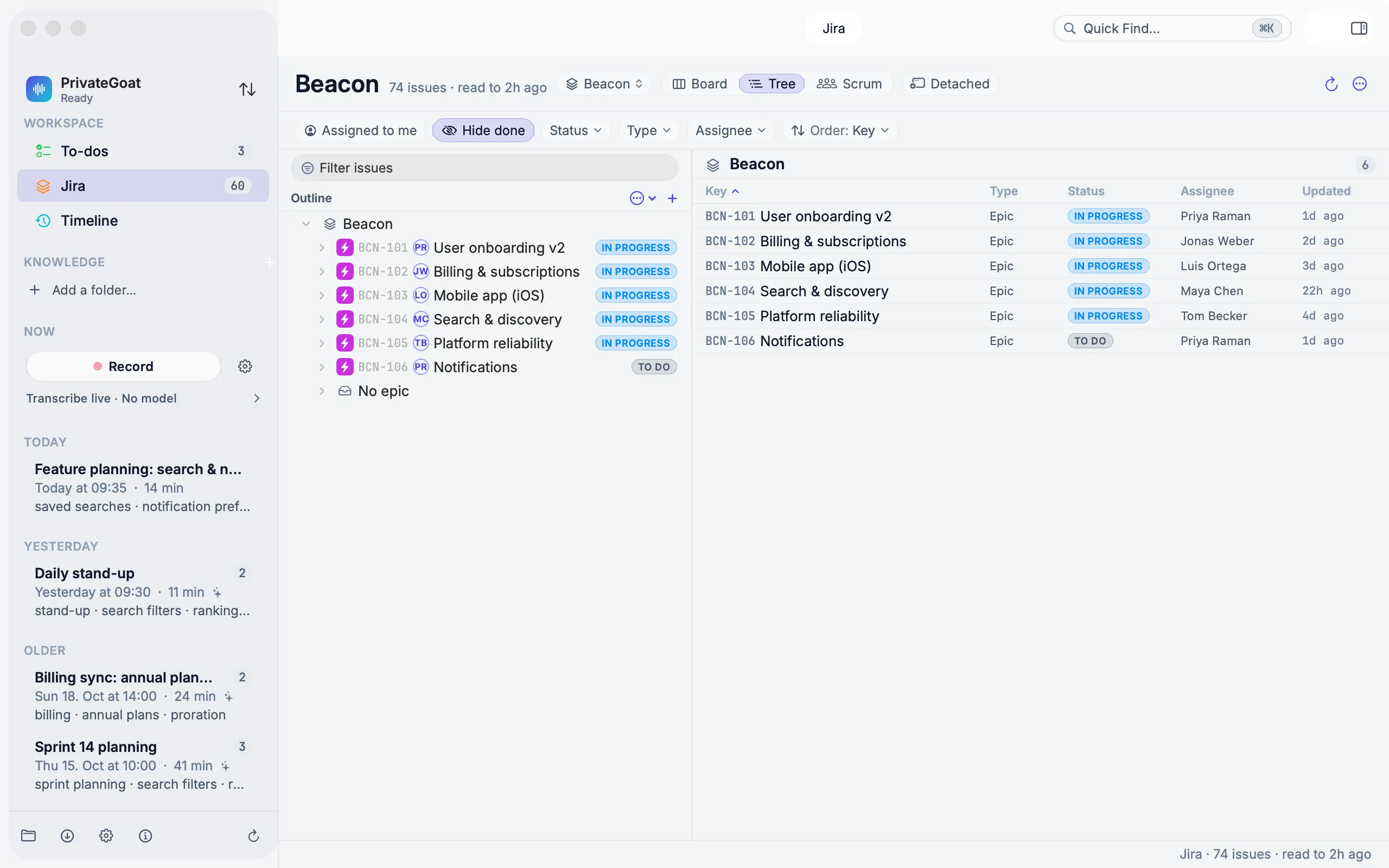
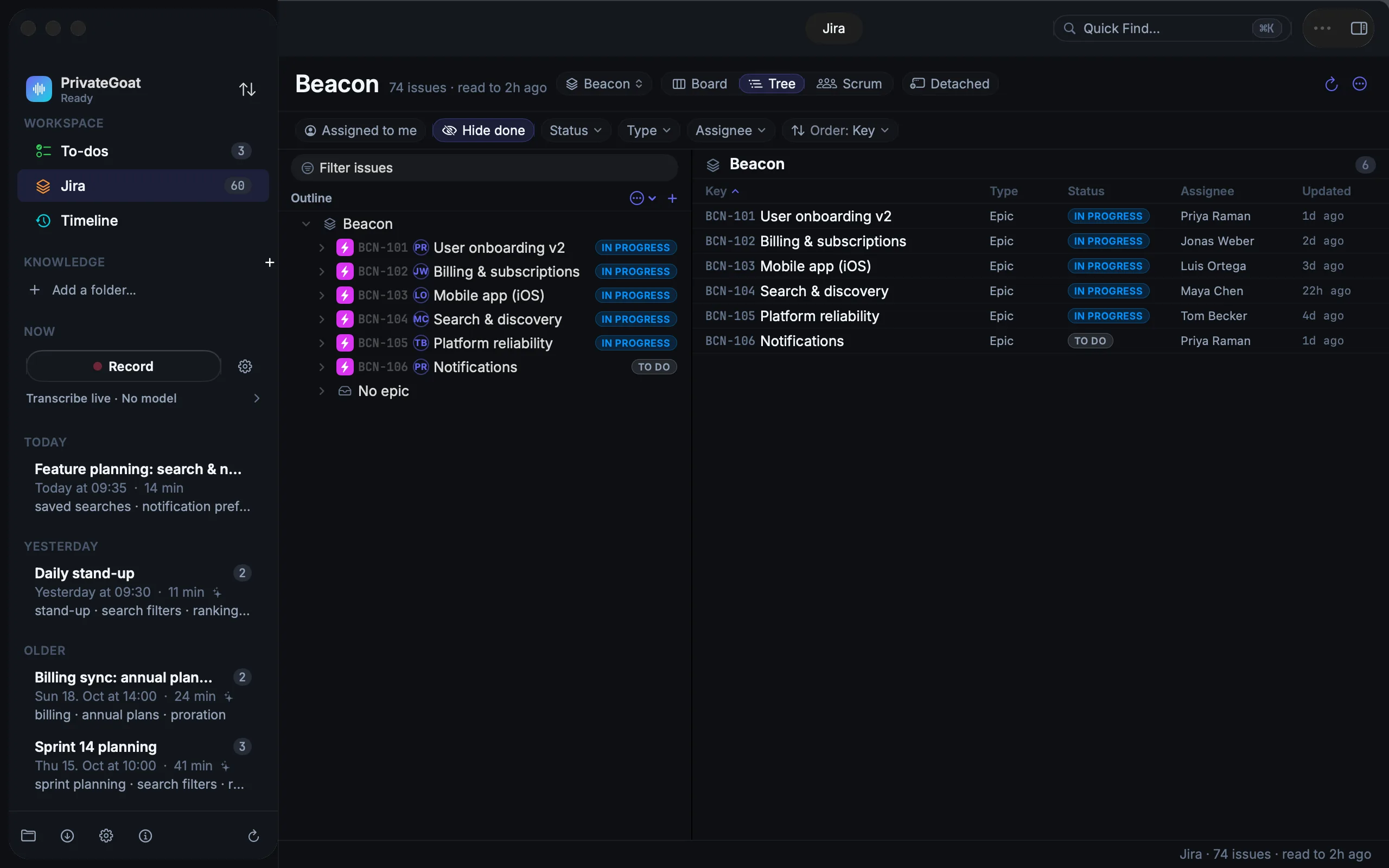
- Expand a project to see its epics, then their stories and subtasks. Issues that have no epic the board holds are collected under a No epic container at the end, when there are any. Several branches can be open at once.
- Select a container to list its children in the right pane; select an issue to see its details.
- Type ahead to jump to a row whose summary or key begins with those letters.
- The filter box narrows the tree across every issue the board holds. While filtering, results become a table with Epic · Story · Subtask · Summary · Who · Status · Created, and a matching epic or story brings its descendants with it.
- A searched issue shows its path as breadcrumbs, for example
ACME-8 › ACME-62 ›. - Right-click a ticket for Edit Title… (F2 also opens it in the tree), assign, status, track, Copy <key> and, on a story, a new subtask.
Board.
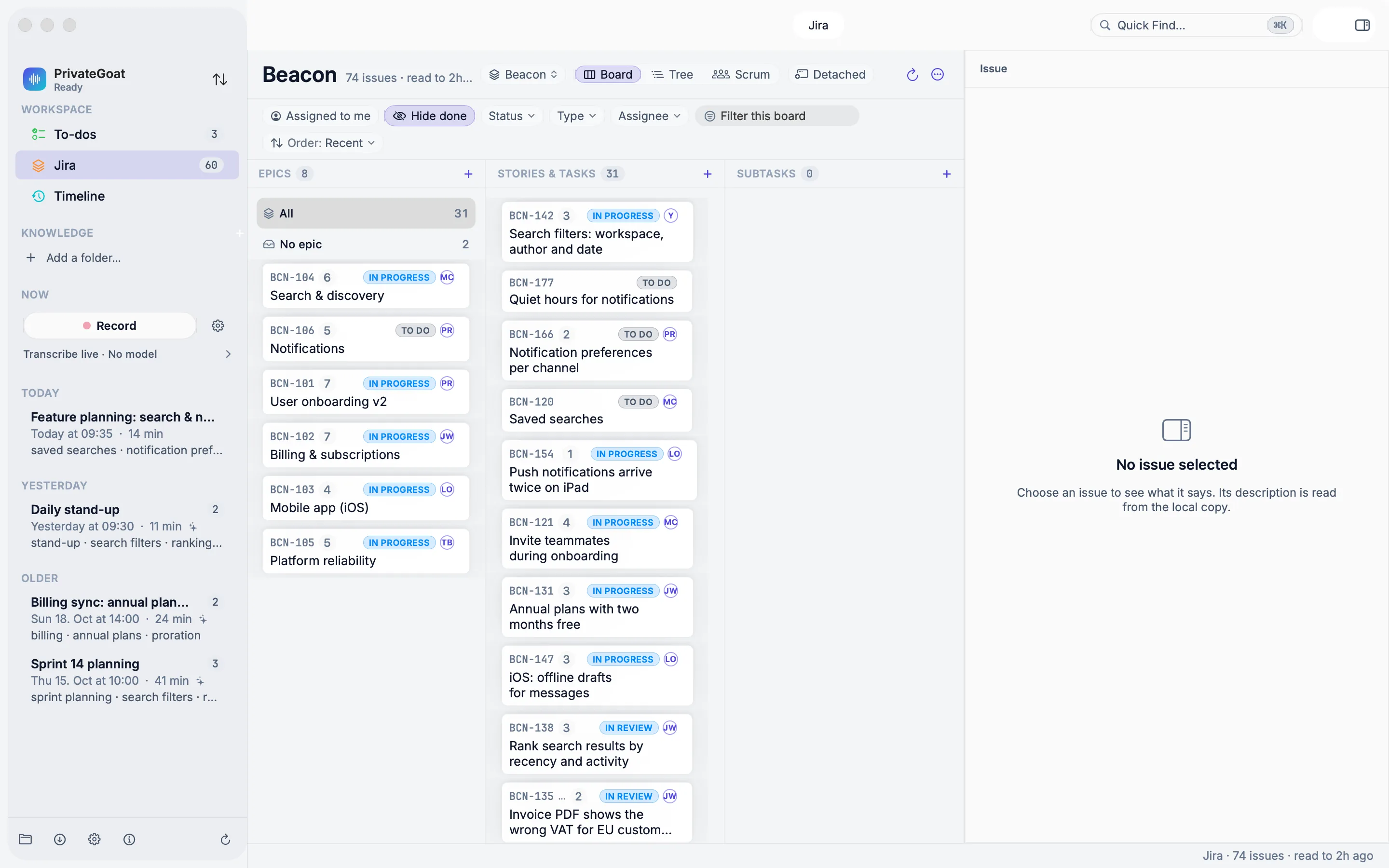
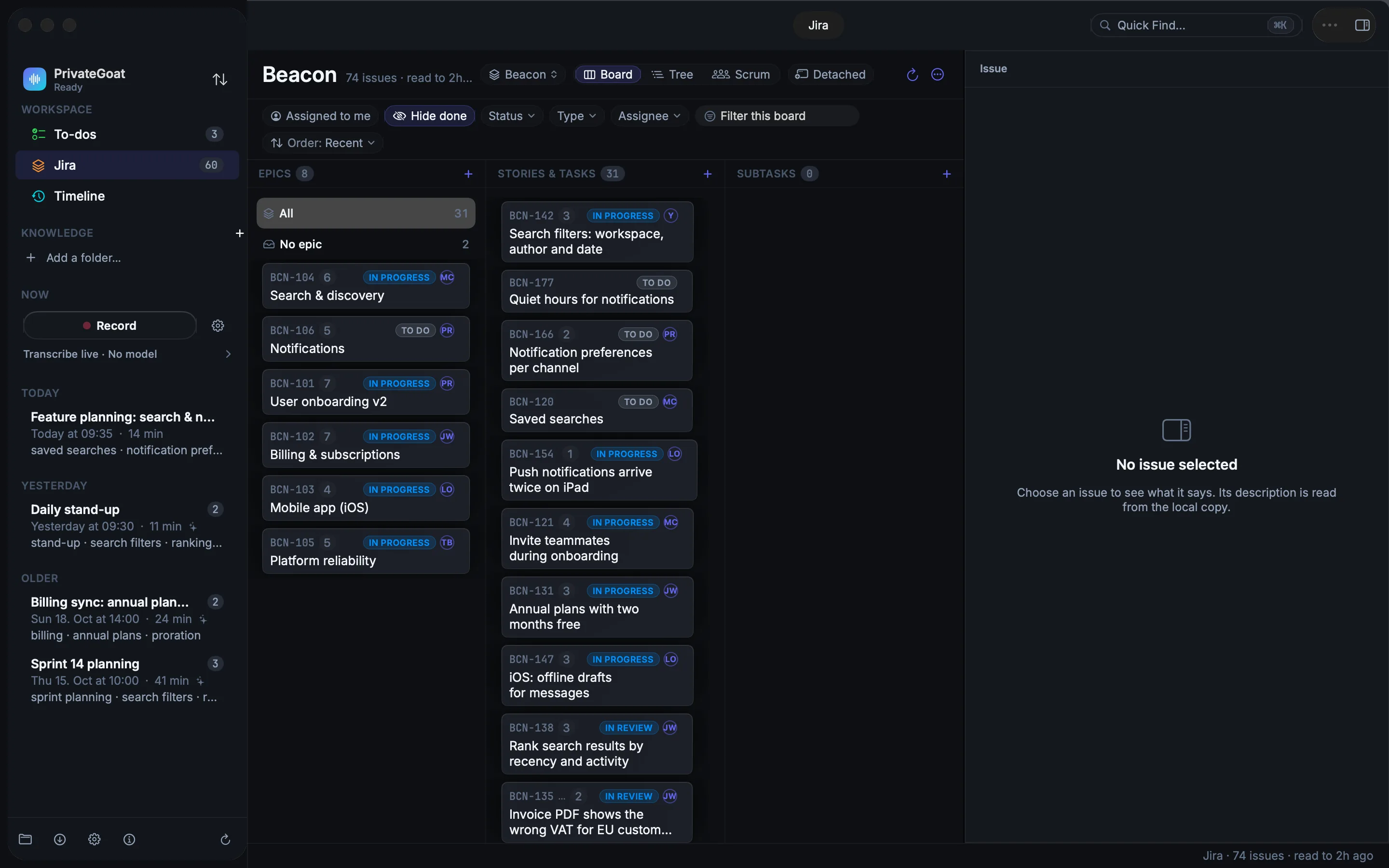
- Three columns walk one path: epic (or All / No epic), then its stories and tasks, then the selected story's subtasks.
- A card opens in the right-hand detail pane. Clicking a status chip or an assignee avatar changes that issue in place when editing is allowed.
- New issues and subtasks can be created from the board's own + controls.
Board, Tree and Daily Scrum draw the same tickets and share the selected issue. The board's filter narrows both the board and the tree, because both are drawn from the same filtered list. The tree's own Filter issues box narrows the tree alone and leaves the board as it is.
Settings
| Setting | Where |
|---|---|
| Sort order | The header: Key in the tree, Recent (most recent first) on the board, or Jira rank (the backlog order) in either |
| Per-board filters: Assigned to me, Hide done, status category, issue type, assignee (including Unassigned), contains-text, sort Recent / Jira rank | The filter controls of each board |
| Connection and editing | Settings → Jira |
Board filters, sort order and which branches are open are remembered per board between launches. The tree's filter text is not: it is kept while the window stays open, and starts empty next launch.
What is stored
| Item | Where |
|---|---|
| Issues, hierarchy, board definitions | ~/Library/Application Support/Sonavia/jira.sqlite3 |
| Filter and sort choices | App preferences, per board |
| Comments and attachments | Not copied at all |
What leaves your Mac
Reads come from the local copy. A change you make goes to Atlassian's MCP gateway at
https://mcp.atlassian.com/v2/mcp; the cache updates immediately afterwards. Nothing else receives Jira
data.
When it is off or fails
- No connection: the local copy is shown read-only.
- No Jira account: there is no Jira place in the sidebar at all (see Connect Jira).
- A filter with no match: the view says so rather than showing an empty outline.
- A read-only grant: assign, status, title and subtask actions are disabled with an explanation.
- ⌃⌥J: always lands in the filter of the tree, even if the tree was already open (see Ticket lookup).
Related
- Daily Scrum — the third view over the same tickets.
- Create and edit tickets — what the edit controls do.
- The local copy — where these views read from.