Ticket lookup
⌃⌥J, a few letters, ⌃C: the ticket key, title and link are on your clipboard and you are back where you were.
Looking up one ticket is the smallest, most repeated task in a Jira day. PrivateGoat makes it three keys: open the lookup, type a few letters, copy. The window hides itself and your focus returns, so ⌘V pastes immediately.
How to use it
- Press ⌃⌥J from any app. PrivateGoat comes forward on the Jira surface in Tree shape, with the filter focused and the caret in it.
- Type a few letters — a key like
ACME-62, or words from the summary. The cached issues narrow as you type. - Press ⌃C — or ⌘C when no text in the filter is selected. The selected ticket's key, title and link are copied as text, URL and HTML; the window hides, focus returns to the app you came from, and a small note says ACME-62 copied with Key, title and link are on the clipboard.
- Paste.
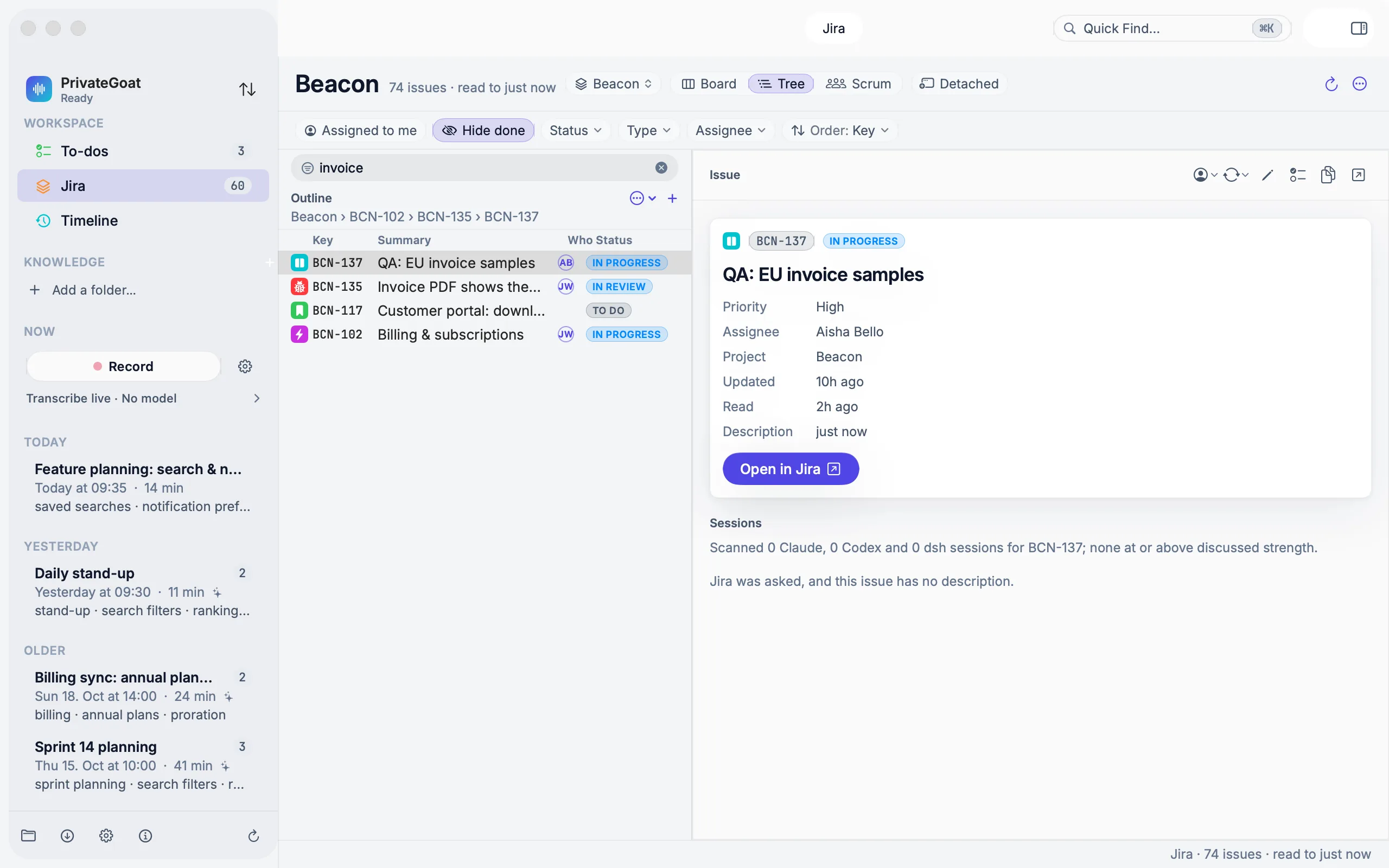
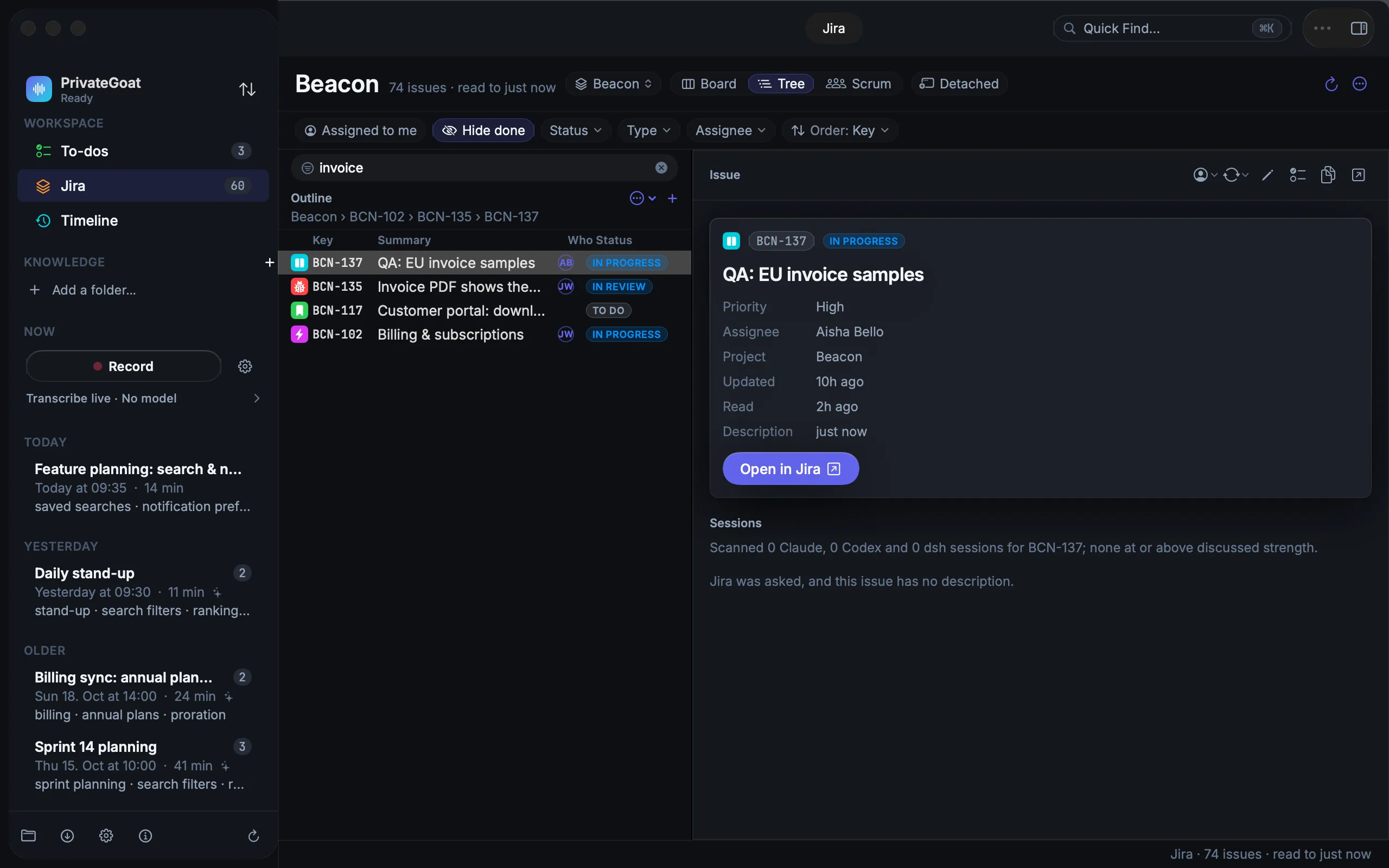
Return or a double-click does something different: it opens the issue in the detail pane, which ends the lookup session.
Three keys against a browser detour
| In the browser | With PrivateGoat | |
|---|---|---|
| Steps | Open Jira, search, open the ticket, copy the link | ⌃⌥J, a few letters, ⌃C |
| Page loads | 3 | none |
| Typical time | about 10 s (2–3 s open, 1–2 s search, 2–5 s open, then copy) | about 1 s |
The timings are typical, from the maker's own use — not a benchmark.
A big Jira stays fast
The lookup and Quick Find search a prepared index of your local copy, so a keystroke reads only the words you typed. In the app's own benchmark on 200,000 generated tickets, Quick Find's first 20 results came back in under 40 ms per keystroke. That is test data in a debug build, not a promise for every Mac.
Settings
| Setting | Where | Notes |
|---|---|---|
| Jira lookup | Settings → General → Global shortcuts | Change it or switch it off |
| Account and editing | Settings → Jira | See Connect Jira |
What is stored
| Item | Where |
|---|---|
| The issues the lookup searches | ~/Library/Application Support/Sonavia/jira.sqlite3 |
| Lookup history or queries | Not stored |
What leaves your Mac
Nothing for the lookup itself: it searches the cached issues in memory. Opening the Jira surface later may sync, which uses Atlassian's MCP gateway — see The local copy.
When it is off or fails
- No Jira account: ⌃⌥J is not registered and its row is not listed in Settings → General; its chord and switch are kept and return when you connect Jira.
- No match: the filter says there are no results.
- A read-only grant: it does not block lookup or copying.
- A copy from a normally opened tree: focus is only returned automatically during a lookup session, so a copy there does not hide the window.
- The shortcut is taken by another app: Settings keeps the previous chord and says so.
Related
- Quick Find — when you do not know which ticket you want.
- Tree and board — the tree the lookup lands in.
- Keyboard shortcuts — changing the chord.