Menu bar and settings
Menu bar, Dock or both, the state-aware menu, and a map of every settings page.
PrivateGoat is a menu-bar app with a main window. The icon is always there — one click opens the window, the other click gives you the menu — and every setting lives on one Settings page in the main window, beside the sidebar, grouped by the thing it changes.
The menu bar
| Gesture | What happens |
|---|---|
| Left-click the icon | Opens the PrivateGoat window |
| Right-click or Control-click | Opens the state-aware menu |
The menu changes with what the app is doing:
| State | Menu items |
|---|---|
| Idle | Start Dictation, Start Meeting, Live Subtitles…, Open PrivateGoat, then up to a few Recent meetings |
| While dictating | Stop Dictation, Live Subtitles…, Open PrivateGoat |
| During a meeting | Pause or Resume Meeting, Stop Meeting, Start or Stop Dictation (not while paused), Live Subtitles, Open PrivateGoat |
| With the vault on | Unlock Vault… while it is locked (not during a meeting), Lock Vault while it is open |
| Always, below | Settings…, Check for Updates…, About PrivateGoat, Quit PrivateGoat |
Live Subtitles… opens its own window and is ticked while subtitles run; during a meeting, Live Subtitles hides or shows the meeting's subtitle bar instead. See Live Subtitles.
The menu-bar menu and the main menu expose the same core actions.
Where PrivateGoat appears
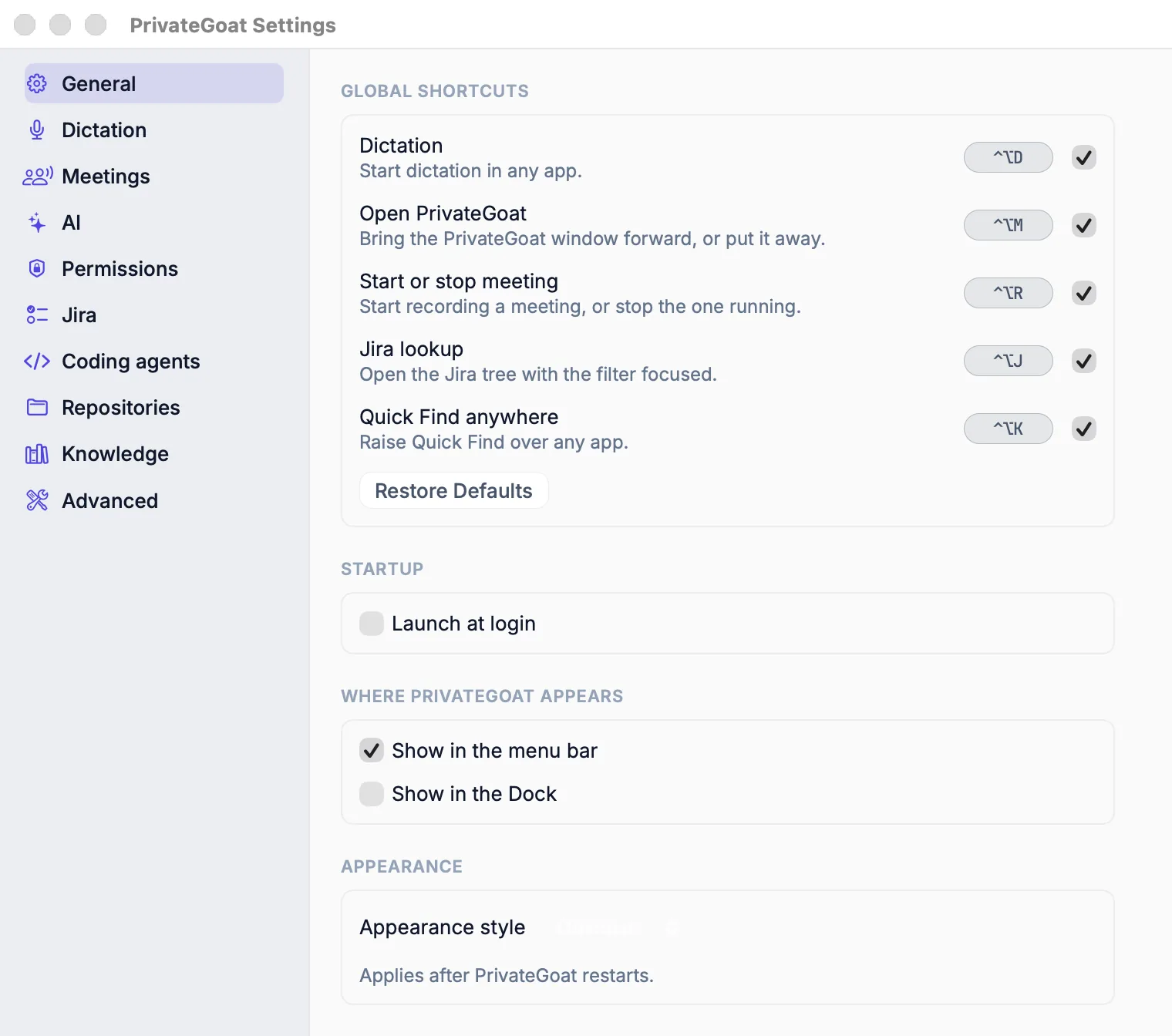
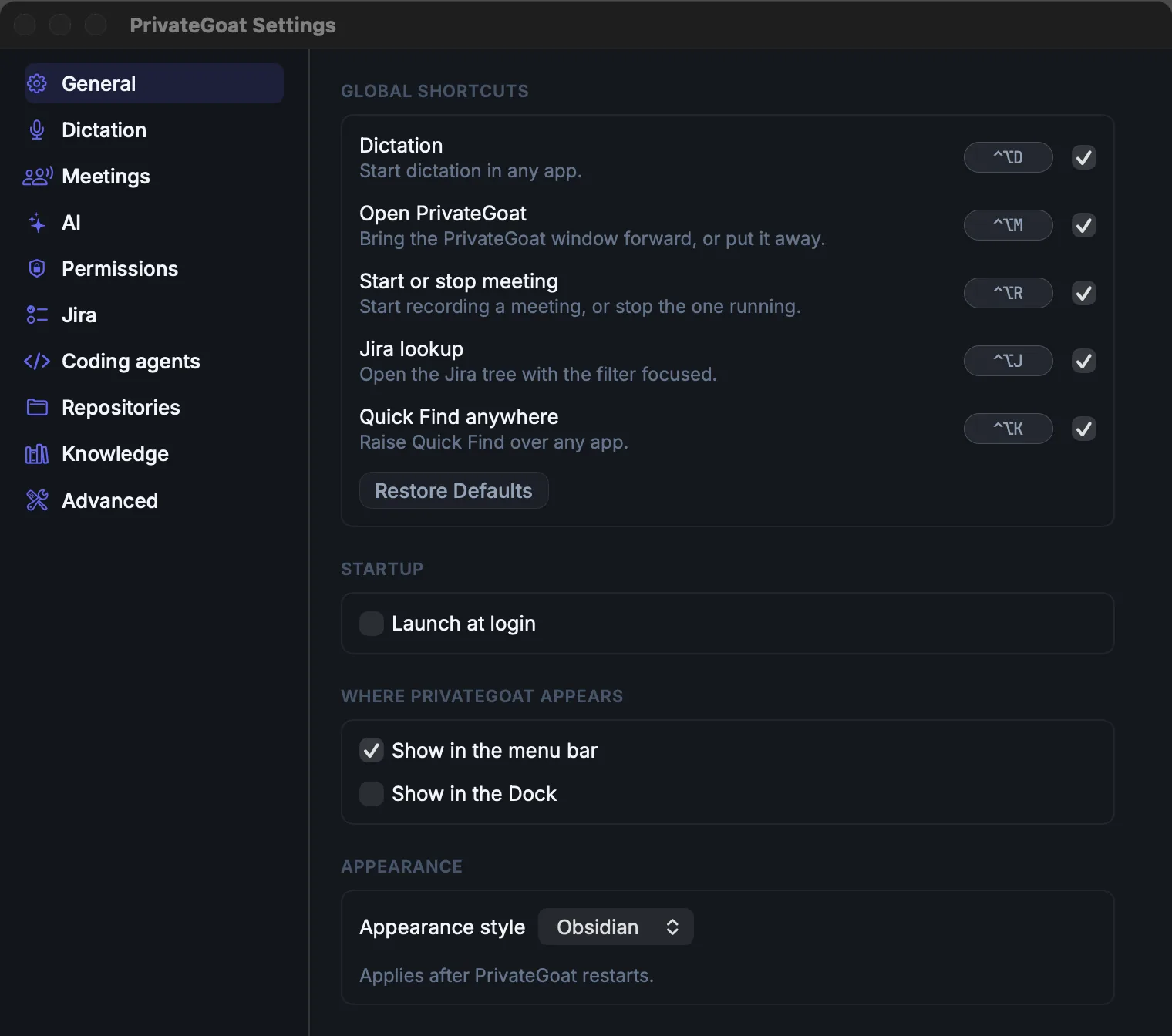
Settings → General holds the presence settings:
| Setting | What it does |
|---|---|
| Show in the menu bar | The icon in the menu bar |
| Show in the Dock | A Dock icon as well |
| Launch at login | Starts the app when you log in |
| Show the goat on the desktop | The desktop goat (see The desktop goat) |
| Appearance style | Obsidian or Classic; applies after a restart |
| Global shortcuts | The five chords (see Keyboard shortcuts) |
| About | Version, Welcome Tour…, Where your data lives…, About PrivateGoat…; when the updater is available, an Updates group beside it holds Check for updates automatically and Check for Updates… |
The menu bar and Dock switches are independent: hiding one leaves the other. Launch at login is a macOS login item, and macOS can refuse or remove it in System Settings → General → Login Items.
Every settings page
Choose Settings at the bottom of the sidebar, or Settings… (⌘,). The section list sits beside the page; View → Back (⌘[) returns to where you were.
| Page | Contains |
|---|---|
| General | Global shortcuts, Startup, Where PrivateGoat appears, Appearance, Desktop, About, Updates (when available) |
| Meetings | Calls, After a meeting, Recording & models (capture level, meeting subtitles and translation, Whisper model, summary model), Storage, Team folder, Name corrections, Experimental |
| Dictation | Microphone, Engine, Output (including Leave out the dots for pauses), Vocabulary (Words and Terms…, Corrections…) |
| Jira | Without Jira: what connecting adds and Connect Jira…. With Jira: Connection (status, Open Jira in PrivateGoat), Editing, Creating issues |
| Knowledge | Knowledge bases, Agent memory, Meaning search (embeddings) |
| Coding agents | Claude Code, Codex CLI, Claude Desktop: status and setup; Chats (Read coding-agent histories on this Mac); Agent memory |
| Repositories | Scanned folders, repositories to read, who counts as you (for the Timeline) |
| AI | Where summaries run (server and Change…, status, Model, Try a Test Summary), Cloud models (Allow Ollama cloud models), Vault meetings (Also send vault meetings off this Mac); see Summary servers |
| Privacy | The encrypted vault: Encrypted vault, What goes into the vault, Locking, Recovery secret, Old copies of the search index |
| Permissions | Microphone, Paste (Accessibility), System audio |
| Advanced | Diagnostics: Open Diagnostic Log…, Whisper Models… |
What is stored
| Item | Where |
|---|---|
| Menu bar, Dock, launch at login, goat, appearance, shortcuts | App preferences |
| The login item | Registered with macOS, not with PrivateGoat |
No meeting data is involved in any of these settings.
What leaves your Mac
Nothing. Opening the menu, changing a setting or moving the icon makes no network request.
When it is off or fails
- Both presence switches: they are independent, so hiding one leaves the other; the app keeps running.
- Launch at login refused: the login item can be removed in System Settings; the app still starts when you open it.
- Global shortcuts: they are registered separately and still work when no window is open; if a chord is taken, the app says so and keeps the previous one.
- A setting that needs a restart: the appearance style applies after restarting the app.
Related
- Keyboard shortcuts — all five global chords.
- Updates — the Updates group on the General page.
- Where your data lives — the About item that lists it.