The encrypted vault
An optional vault that keeps the kinds of meeting data you choose encrypted on this Mac, with Touch ID to unlock and 24 recovery words.
The vault is optional and off until you turn it on. When it is on, the kinds of data you choose are written encrypted on this Mac and read back after an unlock. It is built for people whose conversations must stay off the cloud, such as healthcare, legal and finance teams.
How to use it
- Turn it on. Settings → Privacy → Keep meetings in an encrypted vault. The vault is created, and the recovery secret is shown — step 5 below.
- Choose the kinds. With the vault on, the four kinds about faces and voices start on; the words start off. Encrypt Everything turns every kind on.
- Unlock it. Touch ID or your login password, once per session, or Automatically while your Mac is unlocked. It locks again after 15 minutes without use and when the screen locks, by default.
- Record as usual. Recording never waits for an unlock: files are encrypted to the vault's public key, so a meeting recorded while the vault is locked still records, encrypted.
- Keep the recovery secret. 24 words are shown once when the vault is made and never again, and are not offered for copying. Print them or write them down. Three of the words are typed back to confirm. Create a New Recovery Secret… makes a new one later, and the old words stop working.
The kinds are Audio recordings, Call screenshots, Speaker pictures, Voice profiles and voice groups (these four start on), and Transcripts, Notes, Summaries, Meeting titles and Dictations (these start off).
Turning a kind on encrypts the files of that kind already on the Mac in a background pass, with progress shown; each file is checked before the unencrypted one is removed. Turning a kind off needs the vault unlocked and a confirmation. One meeting can be moved on its own: right-click it → Move to Vault or Move Out of Vault….
While the vault is locked
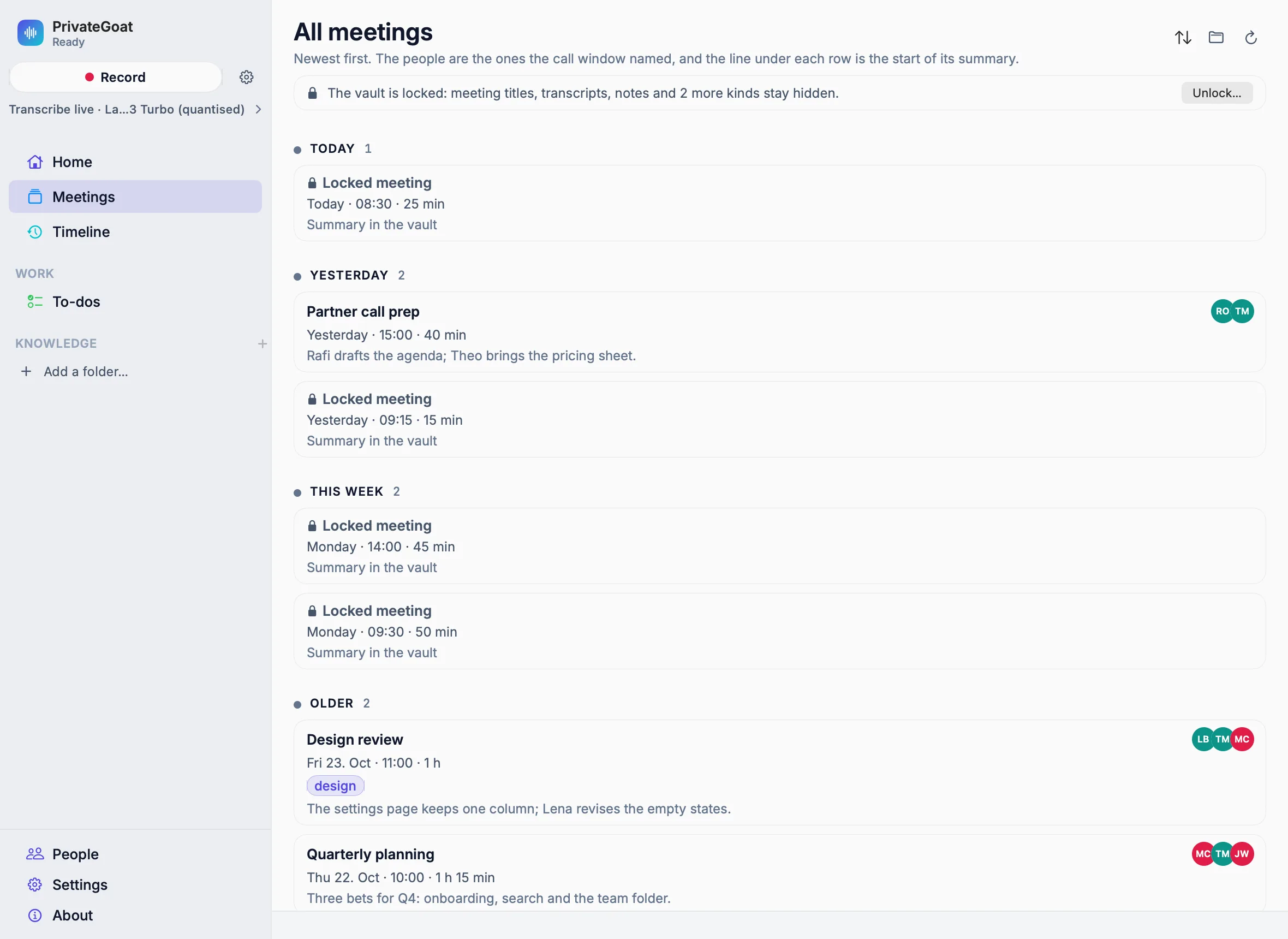
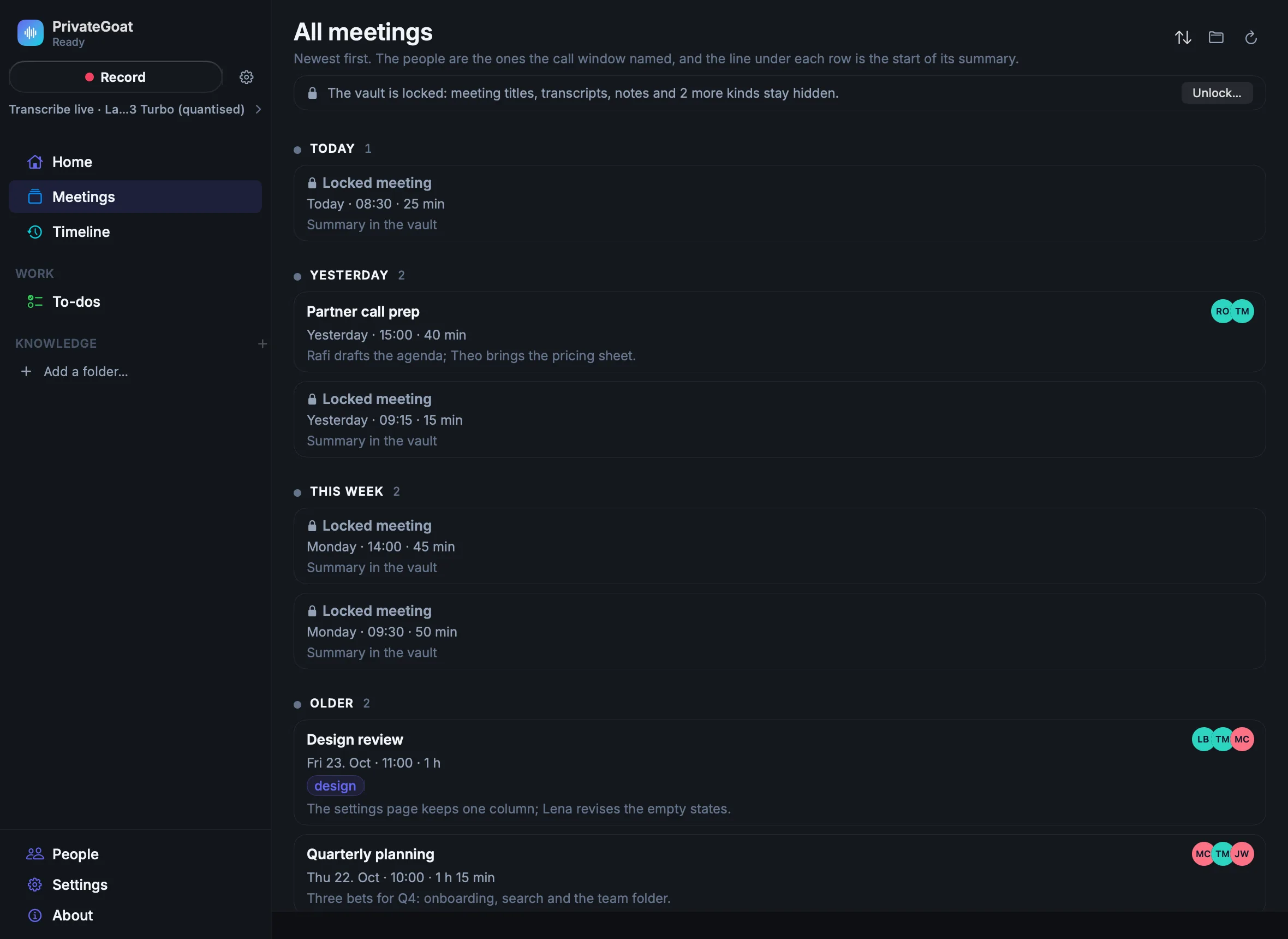
- Lists say so. A meeting whose title is encrypted shows as Locked meeting, with its date and length, on the Meetings page, Home, Quick Find and the Timeline. A line at the top of the Meetings page and Home names what stays hidden, with Unlock…. After unlocking, the real titles appear in place.
- Unlock is where you are: beside a locked title, in place of an encrypted transcript or summary, on Quick Find's vault line, and as Unlock Vault… in the menu-bar menu (not while a meeting records).
- Getting a file out. The Files tab marks each encrypted file; Save a Copy… writes a decrypted copy, such as a normal WAV, where you choose. Playback decrypts in memory and writes no WAV.
The format and the decrypt tool
The file format, PGV1 (X25519, HKDF-SHA256, AES-256-GCM), is documented, and a small standalone Python script that imports no app code decrypts a vault file with the 24 words. Your files stay readable without PrivateGoat.
Settings
| Setting | Where | Default / Notes |
|---|---|---|
| Keep meetings in an encrypted vault | Settings → Privacy → Encrypted vault | Off |
| The kinds, Encrypt Everything | Settings → Privacy → What goes into the vault | See above |
| Unlock, lock after inactivity, lock when the screen locks, Lock now | Settings → Privacy → Locking | Once per session; 15 minutes (1, 4, 8 hours or never); on |
| Create a New Recovery Secret… | Settings → Privacy → Recovery secret | — |
| Remove Old Copies… | Settings → Privacy → Old copies of the search index | Removes old index backups |
What is stored
| Item | Where |
|---|---|
| The vault | …/Sonavia/Vault/vault.json |
| A sealed file | Beside where the plain one was, under the same name ending in .pgv |
| Remembered voices | …/Sonavia/Voices/, kept only encrypted; see People and speaker names |
The key that opens the vault is kept in the macOS Keychain on this Mac only, released by Touch ID or your login password — the same place the Jira sign-in lives (see Keys and sign-ins).
What leaves your Mac
Nothing. Files are encrypted and decrypted on this Mac, and the key stays in its Keychain. See What leaves your Mac.
Quick Find and coding agents
The on-disk search index never holds the text of a kind kept in the vault. Locked, Quick Find says "N meetings are in the vault — unlock to search them"; unlocked, it searches them from memory (see Quick Find).
The MCP server cannot read the vault: coding agents get in_vault instead of the text of an encrypted kind,
and meetings_list still lists those meetings by date (see MCP tools reference).
What the vault does not cover
- Outputs you make stay unencrypted: a share through the team folder, an export, a Jira draft, the clipboard.
- Text sent off this Mac: vault meetings go to a summary server off this Mac or a cloud model only if you turn on Also send vault meetings off this Mac.
- Time Machine snapshots and old disk blocks still hold what was unencrypted before.
- A file that cannot be encrypted is written unencrypted, and the app says so.
When it is off or fails
- Off (the default): nothing is encrypted; everything stays a plain file, as on What stays on your Mac.
- Locked: see above; recording does not wait.
- Unlock cancelled: nothing changes; any other failure is said beside the button.
- Remembered voices: they cannot be switched on until the vault keeps voice profiles.
Related
- What stays on your Mac — the files it can seal.
- Keys and sign-ins — the key that opens it.
- People and speaker names — the voices kept only in the vault.