Live Subtitles
A floating subtitle bar for what your Mac plays or hears, in the original or translated on the Mac. Nothing is recorded.
Live Subtitles puts the words of whatever your Mac plays or hears into a floating bar: a video, a stream, a call. The words appear as they are spoken, in the original language or, if you switch Translate on, translated on the Mac. Nothing is recorded: no audio and no transcript reaches the disk.
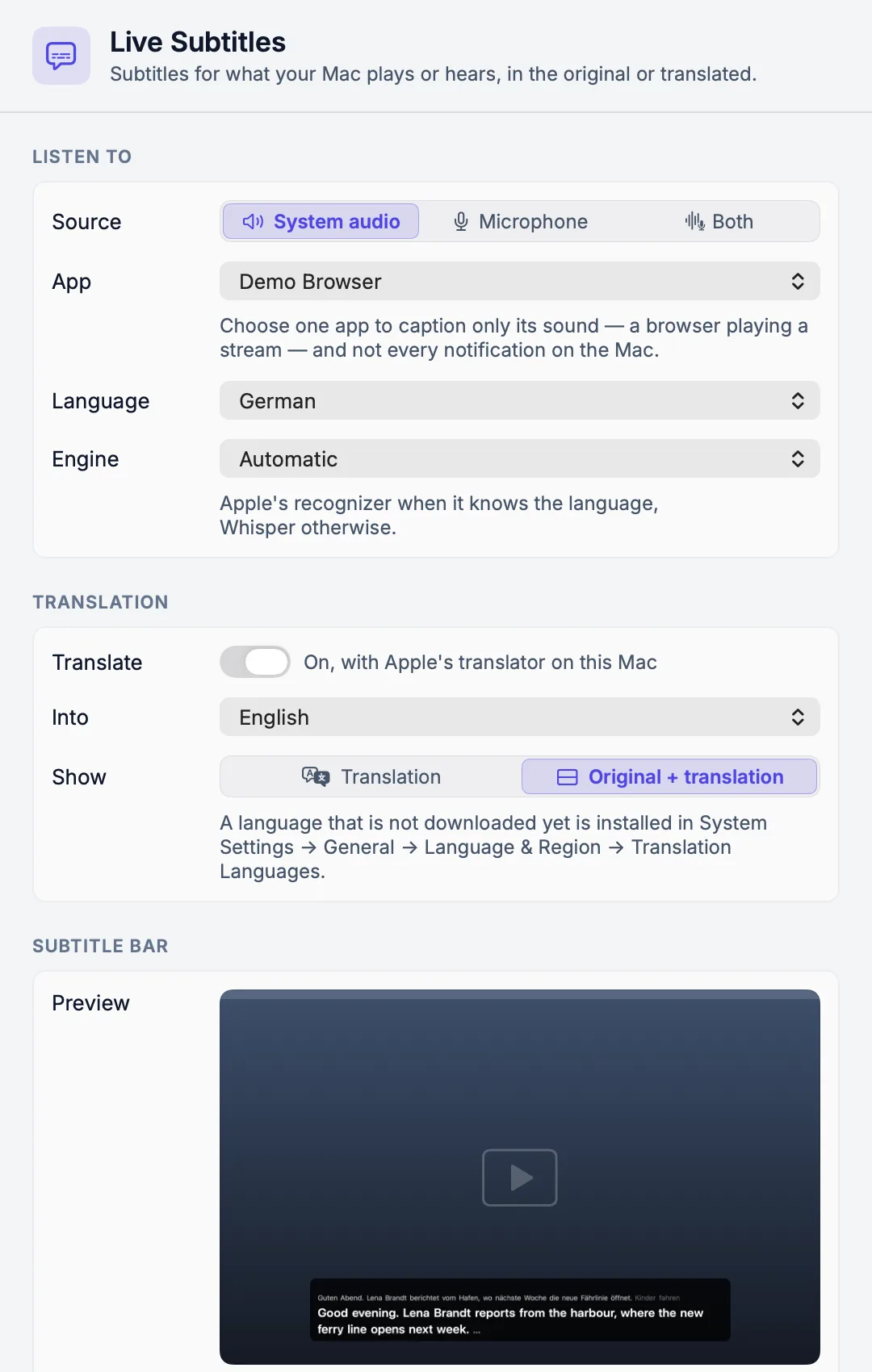
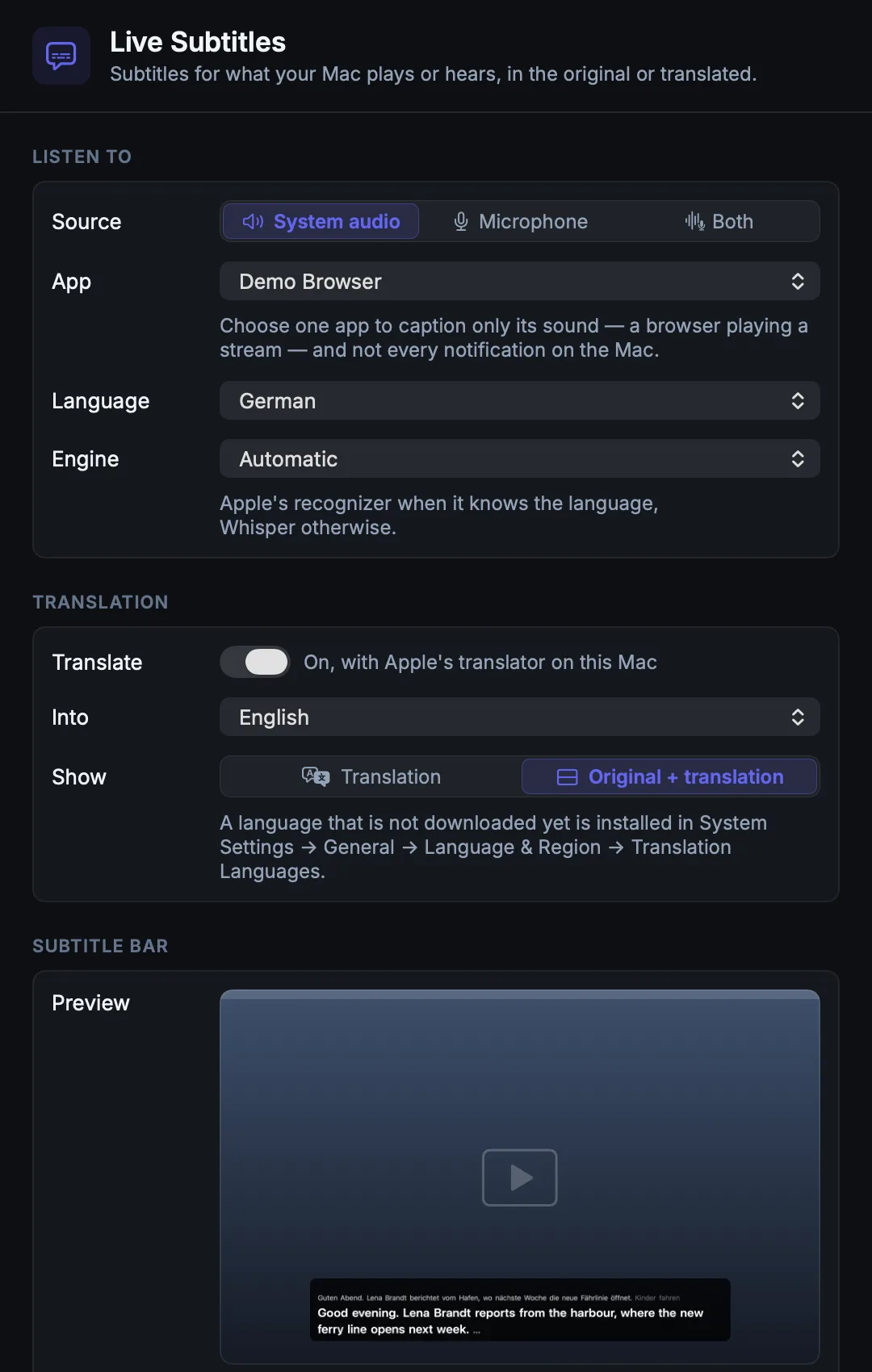
How to use it
- Open the menu-bar menu and choose Live Subtitles…. It opens its own small window. On the first open, a How it works card explains the feature; Got it hides it for good.
- Under Listen to, choose the Source: System audio, Microphone or Both. With system audio you can pick one App, such as a browser playing a stream, so notifications from other apps stay out. Choose the spoken Language, or Detect automatically, and the Engine.
- Under Translation, leave Translate off to see the words as spoken, or switch it on and choose Into and Show: Translation, or Original + translation.
- Under Subtitle bar, set the text size, background, width, Lines (2, 3 or 4) and Position (Bottom or Top). The Preview shows the bar with each change.
- Press Start. The menu row is ticked while subtitles run. Press Stop in the window, or choose the row again, to end it.
Engine. Automatic uses Apple's on-device recognizer when it supports the language and its model is on the Mac, and Whisper otherwise. Detect automatically always uses Whisper. You can also pick Apple or one installed Whisper model by name.
The bar. It works like captions on TV. Each word stays where it first appears. When the bottom line is full, the lines move up by one and the oldest line drops off. Only the last few words, which the recognizer is still guessing, may change. Translations are added one sentence at a time, so nothing you are reading is rewritten. With Original + translation, the original sits small above the translation. Unlock the bar to drag it or resize it from its corner; Lock lets clicks pass through it.
In a meeting
A meeting has its own subtitles, set beside the capture level in Settings → Meetings → Recording & models. At Live + translation + subtitles, the same bar opens while the meeting records. Translate and show subtitles for chooses whose lines: Others (system audio), Me (microphone) or Both (the default). Translate into chooses the language; English is the default. During the meeting, the menu-bar row Live Subtitles hides or shows the bar. See Recording.
Live Subtitles from the menu bar never runs beside a meeting. If a meeting starts, Live Subtitles stops and the window says so; Start is refused while a meeting records. While you dictate, it pauses and the bar says "Paused while you dictate."; it carries on when the dictation ends.
Settings
| Setting | Where | Default |
|---|---|---|
| Source, app, language, engine | The Live Subtitles window → Listen to | System audio, all system audio, Detect automatically, Automatic |
| Translate | The Live Subtitles window → Translation | Off; Into starts as your Mac's language |
| Text size, background, width, lines, position, lock | The Live Subtitles window → Subtitle bar | 2 lines, bottom, locked |
| Meeting subtitles | Settings → Meetings → Recording & models | Both, into English |
There is no item for Live Subtitles in Settings or in the sidebar: the window is where it is set.
What is stored
Only the settings above, as app preferences. The audio is read in memory and dropped. No transcript or subtitle text is written, and stopping clears the bar. The window's footer says so: "Nothing is saved — no audio, no transcript."
What leaves your Mac
Nothing. The words are recognized on the Mac by Apple's on-device recognizer or Whisper, and translated by Apple's on-device translator. A translation language that is not on the Mac yet is installed by macOS in System Settings → General → Language & Region → Translation Languages; PrivateGoat does not download it. With Translate off, nothing is sent to the translator and no language is downloaded.
When it is off or fails
- Translation language missing: the bar shows the original and the window names the language pair to install.
- A pair Apple cannot translate: the original is shown.
- One translation fails: that piece shows its original; the next piece is translated again.
- Apple's speech model missing: it does not start, and the window offers Download speech model or a Whisper engine.
- No microphone or Screen & System Audio Recording permission: it does not start and names the setting to change.
- The chosen app is not running: it does not start; open the app or choose all system audio.
- A meeting starts: it stops, as above.
Related
- Recording — the capture levels, including subtitles in a meeting.
- Transcripts — translated lines in a meeting's transcript.
- Menu bar and settings — the menu-bar menu.