What stays on your Mac
Where every kind of data lives, file by file, and what never leaves. Plain files and SQLite in one folder you can open, unless you keep a kind in the vault.
Everything PrivateGoat knows is on this Mac: files, one SQLite database per feature, and items in the Keychain, nearly all under a single Application Support folder. There is no PrivateGoat server, no cloud database and no account. The files are plain unless you keep a kind in the encrypted vault; then that kind is sealed where it sits, and everything else can still be opened, copied or backed up in Finder like any other file.
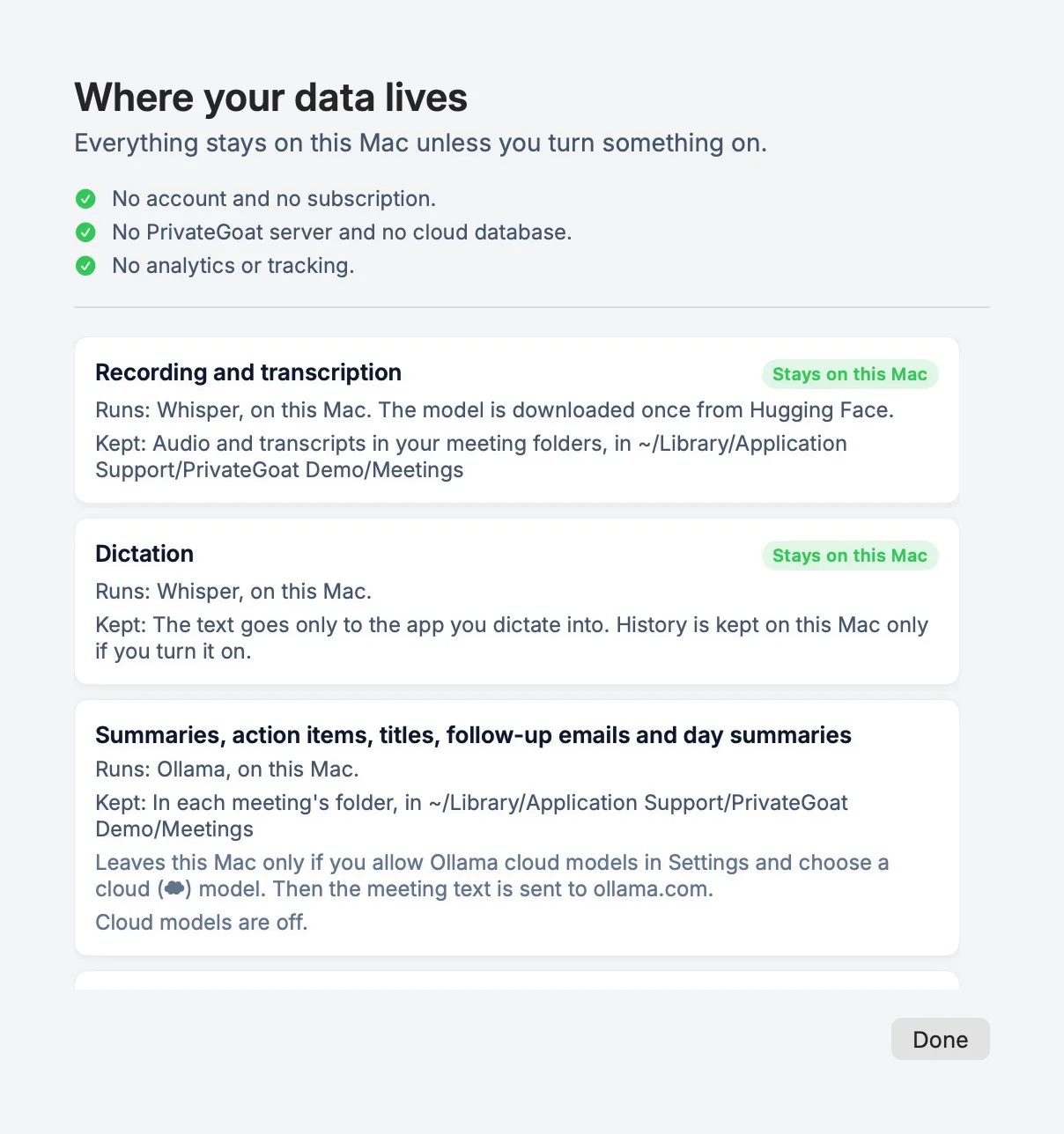
Where your data lives
The root for everything below is ~/Library/Application Support/Sonavia/ (the app's support folder keeps
its internal name, Sonavia).
| Data | Path |
|---|---|
Meetings: audio.wav, system.wav, meeting.md, notes.md, summary.md, summary.json, summary-settings.json, meta.json, corrections.json, draft-actions.md, follow-up-email.md, screens/, screens.jsonl | …/Sonavia/Meetings/<meeting>/ |
| Speaker pictures and the name rules | …/Sonavia/People/ |
| Remembered voices, kept only encrypted | …/Sonavia/Voices/ |
| To-dos, groups, descriptions, done state, Jira keys; the meeting index and search index, never the text of a kind kept in the vault | …/Sonavia/workspace.sqlite3 |
| The Jira copy, only if you connect Jira: accounts, scopes, issues, rank, sprint, operation ledger | …/Sonavia/jira.sqlite3 |
| The vault | …/Sonavia/Vault/vault.json |
| Speech models for meetings and dictation | …/Sonavia/Models |
| Dictation history (text only, no audio) | …/Sonavia/Dictations |
| Words and terms, and the learned vocabulary | …/Sonavia/Workspace/Vocabulary.txt, …/Sonavia/Workspace/LearnedVocabulary.json, …/Sonavia/Workspace/LearnedFromAgentChats.json |
| Dictation corrections | …/Sonavia/Workspace/Corrections.txt |
| Knowledge bases (the list of folders only) | …/Sonavia/KnowledgeBases.json |
| Agent memory: feedback and embedding cache | …/Sonavia/MemoryFeedback.json, …/Sonavia/MemoryEmbeddings/ |
| Timeline entries and day digests, session cache | …/Sonavia/Timeline.json, …/Sonavia/HarnessSessions.json |
| The chats index: Claude Code conversations, and Codex ones once you allow it | …/Sonavia/claude-search.sqlite3 |
| The diagnostic log | …/Sonavia/Logs/sonavia.log |
| Live Subtitles: only its settings, never audio or text | App preferences |
| Jira sign-in | The macOS Keychain, not a file (see Keys and sign-ins) |
Two things are deliberately not stored: the notes in your knowledge bases (they stay in your folders) and your source repositories and agent session files (they are read in place and never modified). A shared team folder is outside this list too — it is a folder you chose, not the app's own store.
What it reads from your coding agents
Your Claude Code and Codex chat histories, in ~/.claude/projects and ~/.codex/sessions, are read on this
Mac for Chats, the Timeline and the words
dictation learns — and only after you allow it, with Allow or Settings →
Coding agents → Read coding-agent histories on this Mac. Until then, Chats only counts the chat files by
name, to know whether to show its place in the sidebar, and opens none of them. The files are never changed;
what you typed, the agents' replies and the commands they ran go into the index above, never tool output,
and nothing is uploaded. One exception predates the switch: Quick Find's search over Claude Code
conversations keeps indexing them without it, as it did before.
What never leaves
- Meeting audio. It is never uploaded by any code path, in any feature.
- Transcripts and summaries. They are files on disk. Nothing sends them anywhere unless you share a
meeting through the team folder, send an action to Jira yourself, choose a
summary server off this Mac, or turn on Allow Ollama cloud models
and pick a cloud model — then the meeting text used for summaries and to-do drafts goes to
ollama.com(after each meeting while automatic summarising is on). - Analytics or tracking. There is no analytics SDK and no tracker in the app.
The app makes the network requests listed on What leaves your Mac — model downloads, Jira if you connect it, Ollama, and the update check. Nothing else.
Read it in the app
Settings → General → About → Where your data lives… lists each kind of data and what leaves the Mac, in plain words. The same window states the promises directly: no account and no subscription, no PrivateGoat server and no cloud database, no analytics or tracking.
Opening and moving the folder
Meeting folders can be revealed from the Meetings page (right-click → Show in Finder), from a meeting's Files tab, or from Settings → Meetings → Storage. Moving a meeting to the Trash moves the whole folder; see Meeting history. A redirected workspace takes the vocabulary files with it, because they sit beside the workspace.
What is not automatic
There is no retention timer: nothing is deleted on a schedule. Delete a meeting by moving it to the Trash, screenshots with Delete Screenshots…, and dictation files from the history folder.
Related
- What leaves your Mac — the complete request list.
- Keys and sign-ins — the Keychain items, and the key to the vault.
- The encrypted vault — the kinds you can keep sealed.
- The diagnostic log — the log, and what it never holds.
Dictation
⌃⌥D: speak, and the text is typed into any app. Transcribed on your Mac, with a live preview, words learned from your agent chats and corrections you approve.
The encrypted vault
An optional vault that keeps the kinds of meeting data you choose encrypted on this Mac, with Touch ID to unlock and 24 recovery words.