Meeting history
Every meeting on the Meetings page, with rename, its files, and move to Trash. No schedule, no retention timer.
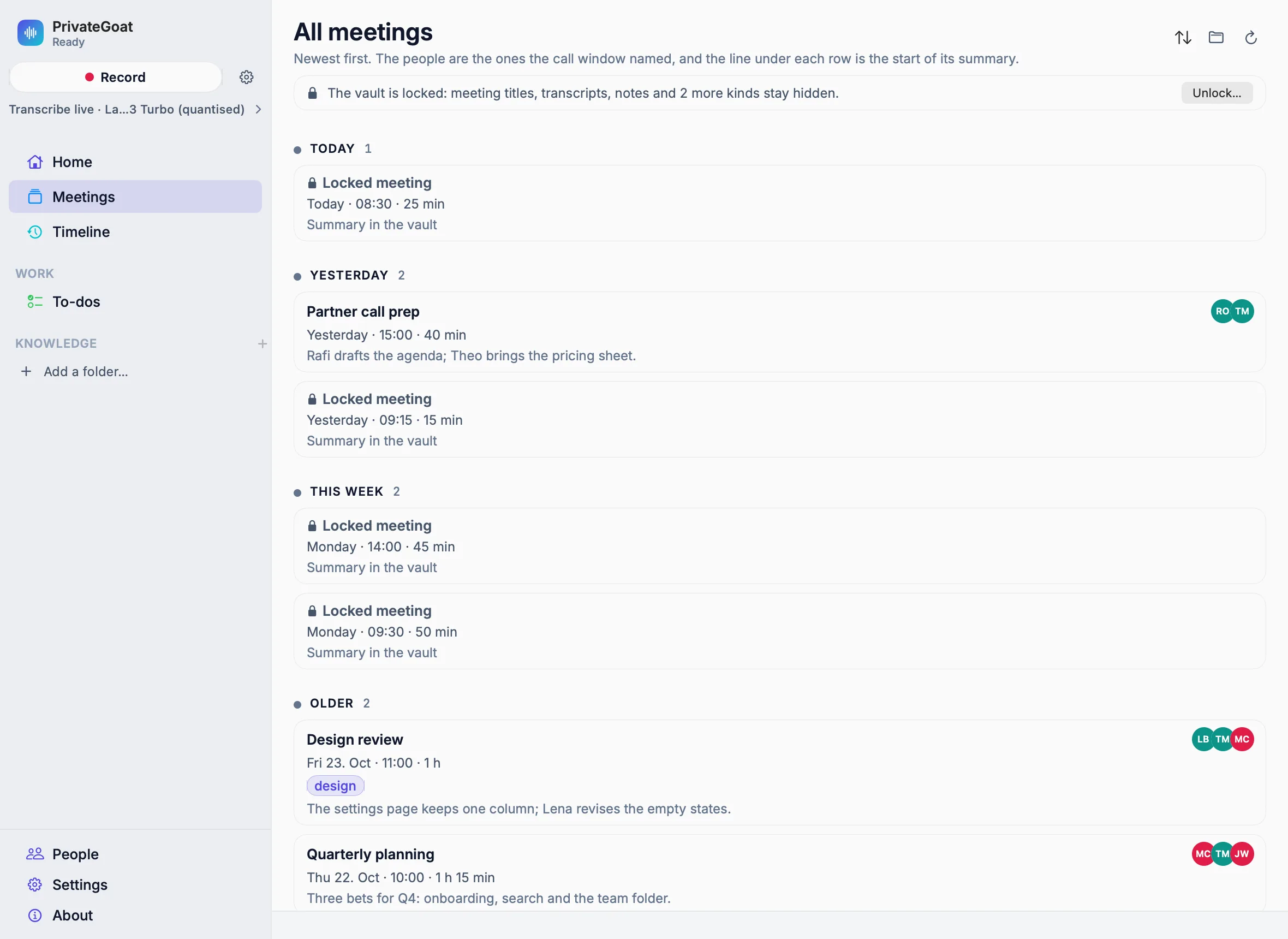
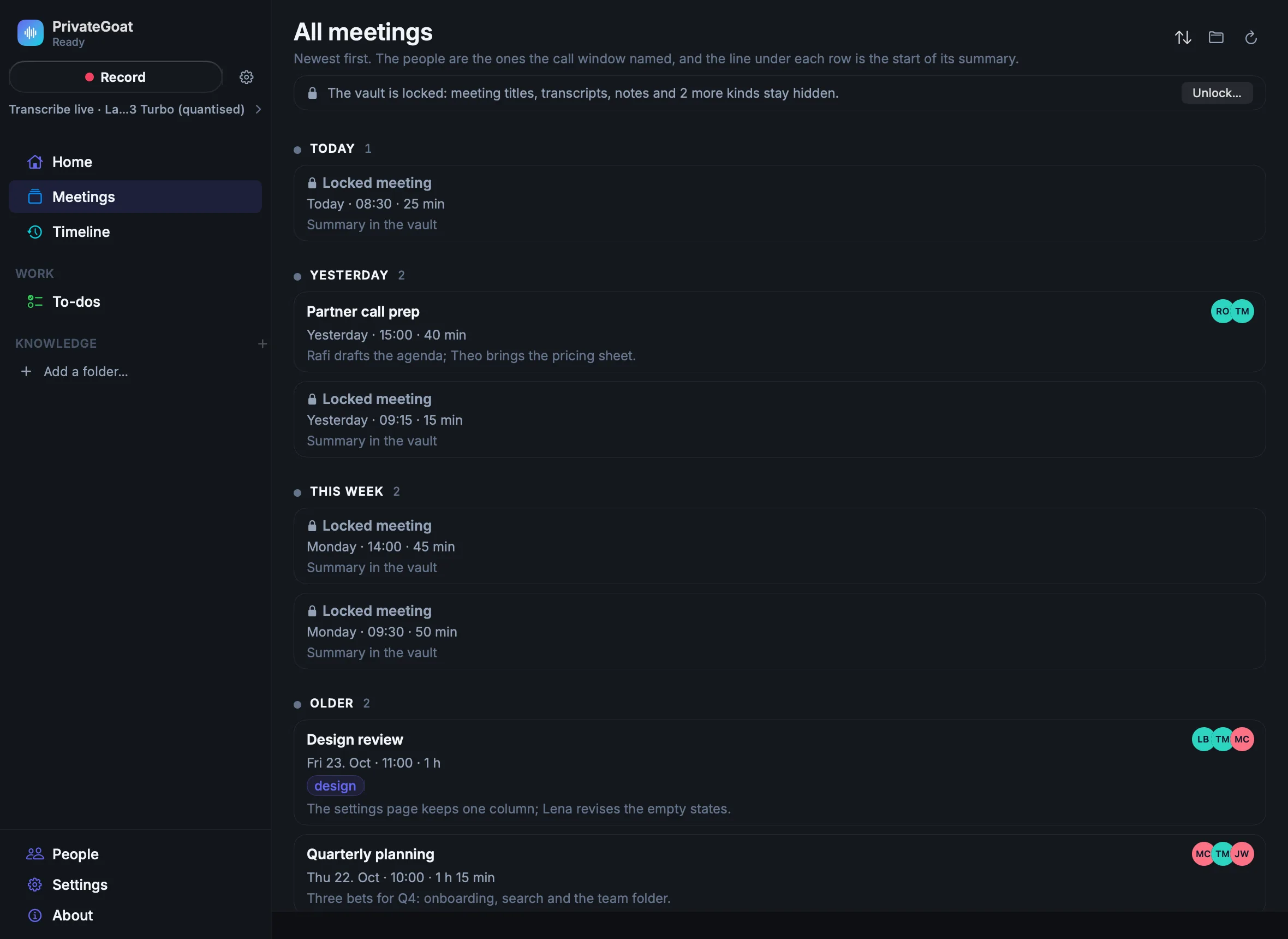
The Meetings page is the meeting archive: everything you have recorded, newest first, with the people the call window named, the tags and the first line of each summary. Renaming changes the title, the Files tab shows what a meeting left on disk, and moving a meeting to the Trash takes the whole folder, where it can still be recovered.
How to use it
Find a meeting. Choose Meetings in the sidebar. The page is titled All meetings and groups the list by when each meeting was recorded: Today, Yesterday, This week and so on. The order button in its header picks Recording date or Recently edited; beside it are Open the meetings folder and Refresh. Teammates' meetings from a team folder appear under Shared with you.
Open one. Click a row. View → Back (⌘[) or the toolbar's Back button returns you to the list where you left it, to Home, or to the meeting you came from.
Right-click a row for:
| Command | What it does |
|---|---|
| Rename… | Changes the title shown in the list and on the meeting page, not the folder name. An empty title cancels |
| Show in Finder | Reveals the meeting's folder |
| Save a Copy of… | Only for encrypted files: writes a decrypted copy, such as a normal WAV, where you choose |
| Move to Vault / Move Out of Vault… | Moves this one meeting in or out of the vault, when the vault is on |
| Share to Team Folder, Update Shared Copy, Stop Sharing | See Share through a team folder |
| Move to Trash… | Moves the whole folder to the macOS Trash |
On the meeting page, the ⋯ menu beside the title has Rename… and Move to Trash… too, with Reveal in Finder, Save a Copy of…, the transcript and summary actions, and the export.
The Files tab. Every finished meeting has Overview, Transcript and Files. Files lists what the meeting left on disk, grouped: Transcript & notes, Summary, Recording (with its length), Call screenshots (one row with the picture count), and Speaker data and Other, folded until you open them. Each row shows its size and path, and a lock where the file is encrypted. Save a Copy… writes a normal file, decrypted if needed; unencrypted text files also offer Copy and Copy as Rich Text. The header shows the folder's total size and Reveal Folder in Finder.
Move to Trash. The whole folder goes to the macOS Trash: audio, transcript, notes, summary and any screenshots. It can be recovered from the Trash. To-dos and Jira issues made from the meeting stay where they are. When the folder is already gone, the same command reads Remove from History and deletes only the list entry.
Settings
None. There is no retention setting and no timer: meetings are not deleted on a schedule.
What is stored
| Item | Where |
|---|---|
| Meeting folder | ~/Library/Application Support/Sonavia/Meetings/<folder>/ |
| Title | The meeting's meta.json, with the title source marked as the person |
| Folder name | Unchanged by a rename |
| A saved copy | Wherever you choose; it is an ordinary, unencrypted file |
| A meeting moved to Trash | The macOS Trash, as a whole folder |
What leaves your Mac
Nothing. Renaming, saving a copy and moving to the Trash are local file operations.
When it is off or fails
- A meeting that is still recording: it cannot be moved to the Trash; the command is disabled while it records.
- The vault is locked: a meeting whose title is encrypted shows as Locked meeting, with its date and length, and a line at the top of the page offers Unlock…. Encrypted files in the Files tab show Locked until you unlock.
- An empty title: the rename is cancelled and the old title stays.
- A folder that has disappeared: offered as Remove from History rather than as a delete.
- To-dos and Jira issues: they are not deleted with the meeting.
Related
- Recording — what the folder contains.
- The encrypted vault — locked meetings and decrypted copies.
- Home — this week's meetings at a glance.