Dictation
⌃⌥D: speak, and the text is typed into any app. Transcribed on your Mac, with a live preview, words learned from your agent chats and corrections you approve.
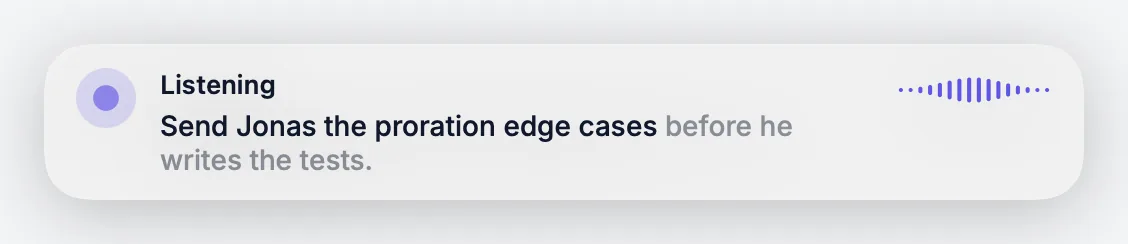
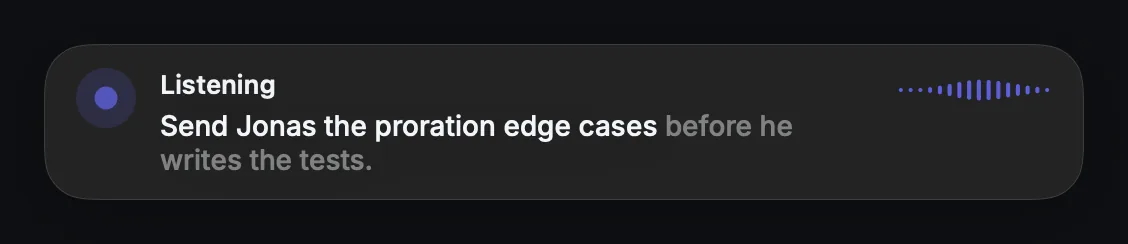
Dictation types what you say into whatever app you were in — your editor, your agent, a ticket — without a recording or a meeting. A floating overlay shows the words as they settle, so you can keep talking while the text appears.
How to use it
- Put the cursor where the text should go.
- Press ⌃⌥D, or choose Capture → Toggle Dictation. The same shortcut stops it.
- Speak. The overlay shows settled words solid and the still-changing tail softened, with a waveform; the text is pasted into the app, or copied if pasting is not possible.
- Press the shortcut again to stop. The overlay reports whether it copied or pasted.
Dictation works during a recording meeting when the dictation engine is Whisper. Apple's on-device speech cannot dictate while a meeting records; the app says so and points to the Whisper engine.
Your words, and what it still mishears
- Learned words. The names and jargon in what you type to Claude Code and Codex, and the names of your project folders, join the words dictation expects. Only your prompts are read, never the agents' replies, and only once you allow PrivateGoat to read coding-agent histories. See Words and terms.
- Corrections. A list of "heard → meant" pairs, for example "Cloud Code" → "Claude Code", applied to every dictation before it is pasted. PrivateGoat suggests pairs from your recent dictations; none applies until you accept it. Meetings are not changed.
- No dots for pauses. The "…" Whisper writes where you pause is left out, so "I think… we should" is pasted as "I think we should".
Settings
| Setting | Where | Options |
|---|---|---|
| Preferred microphone | Settings → Dictation → Microphone | The microphone to use whenever it is plugged in; a second switch shows it under the waveform |
| Dictation model | Settings → Dictation → Engine | Apple Speech or Whisper; Download more models… opens the model window |
| After dictation | Settings → Dictation → Output | Auto-paste or Copy to Clipboard Only |
| Save dictation history | Settings → Dictation → Output | Off by default; text only |
| Leave out the dots for pauses | Settings → Dictation → Output | On by default; off keeps the "…" |
| Restore clipboard after pasting | Settings → Dictation → Output | On by default |
| History folder | Settings → Dictation → Output → Open Dictation History… | Opens the folder |
| Vocabulary | Settings → Dictation → Vocabulary → Words and Terms… | Words and terms the recogniser should expect, including Learn terms from agent chats (on by default) |
| Corrections | Settings → Dictation → Vocabulary → Corrections… | Add, edit, accept or dismiss "heard → meant" pairs |
| Reading agent chats | Settings → Coding agents → Chats | Read coding-agent histories on this Mac, the consent the learned words need |
What is stored
With history on, one Markdown file per dictation, containing the heading and the text only:
| Item | Where |
|---|---|
| Dictation history | ~/Library/Application Support/Sonavia/Dictations/yyyy-MM-dd-HHmmss-<id>.md |
| Permissions | The folder is mode 0700 and the files 0600 |
| Audio | None — dictation audio is never saved |
With history off, no dictation is written. Corrections live in
~/Library/Application Support/Sonavia/Workspace/Corrections.txt, and the words learned from agent chats in
…/Workspace/LearnedFromAgentChats.json.
What leaves your Mac
Nothing. Dictation is transcribed on the Mac: Whisper by default, or Apple's on-device speech engine. No dictation audio or text is uploaded. Learned words and corrections are worked out on the Mac too.
When it is off or fails
- No microphone permission: dictation cannot start.
- Apple Speech during a meeting: refused, with "Apple Speech can't dictate during a meeting; choose a Whisper dictation model in Settings."
- No Paste (Accessibility) permission: the text is copied instead and the overlay says to press ⌘V. It also copies when the original app is no longer focused or the paste cannot be made.
- The clipboard: the previous contents come back about half a second after a successful paste, unless the clipboard changed in the meantime.
- History off: nothing is written, and there is nothing to open from the history folder.
- Corrections.txt cannot be read: dictations are pasted without corrections, and the Words and Terms window says so.
- Reading agent chats not allowed: nothing is learned from them; the window says where to allow it.
Related
- Words and terms — the vocabulary dictation shares with meetings.
- Keyboard shortcuts — changing the dictation chord.
- The desktop goat — the goat listens while you dictate.
Day digest
A short overview of the day and one line per piece of work, written by the local model. It stays, and Update only reads what changed.
What stays on your Mac
Where every kind of data lives, file by file, and what never leaves. Plain files and SQLite in one folder you can open, unless you keep a kind in the vault.