Your first meeting
Join a call, let PrivateGoat ask whether to record, then read the transcript and the summary it writes.
A first meeting takes three keys and a wait. PrivateGoat records both sides of the call — your microphone and what the Mac plays — transcribes them on the Mac while the call runs, and summarises the transcript when it is done.
1. Start recording
Join the call in whatever app you use. When a call app holds the microphone for 3 seconds, a small panel appears under the menu bar: "Teams is using the microphone", with "Record this meeting? ⌃⌥R works too." under it. Choose Record.
You can also start a meeting yourself, from anywhere:
- Press ⌃⌥R to start and the same keys to stop.
- Or choose Capture → Toggle Meeting.
Nothing joins the call. There is no bot, no extra participant and no audio driver to install.
2. Talk
The meeting page opens on the Overview, and its Transcript tab shows the text. At the default capture level the words appear while you speak, with your microphone on one track and the other side on the second. If the app you are calling from is not on the known list, there is no prompt — press ⌃⌥R yourself.
You can pause a recording; while paused the tracks write silence and the pause is marked.
3. Stop and read
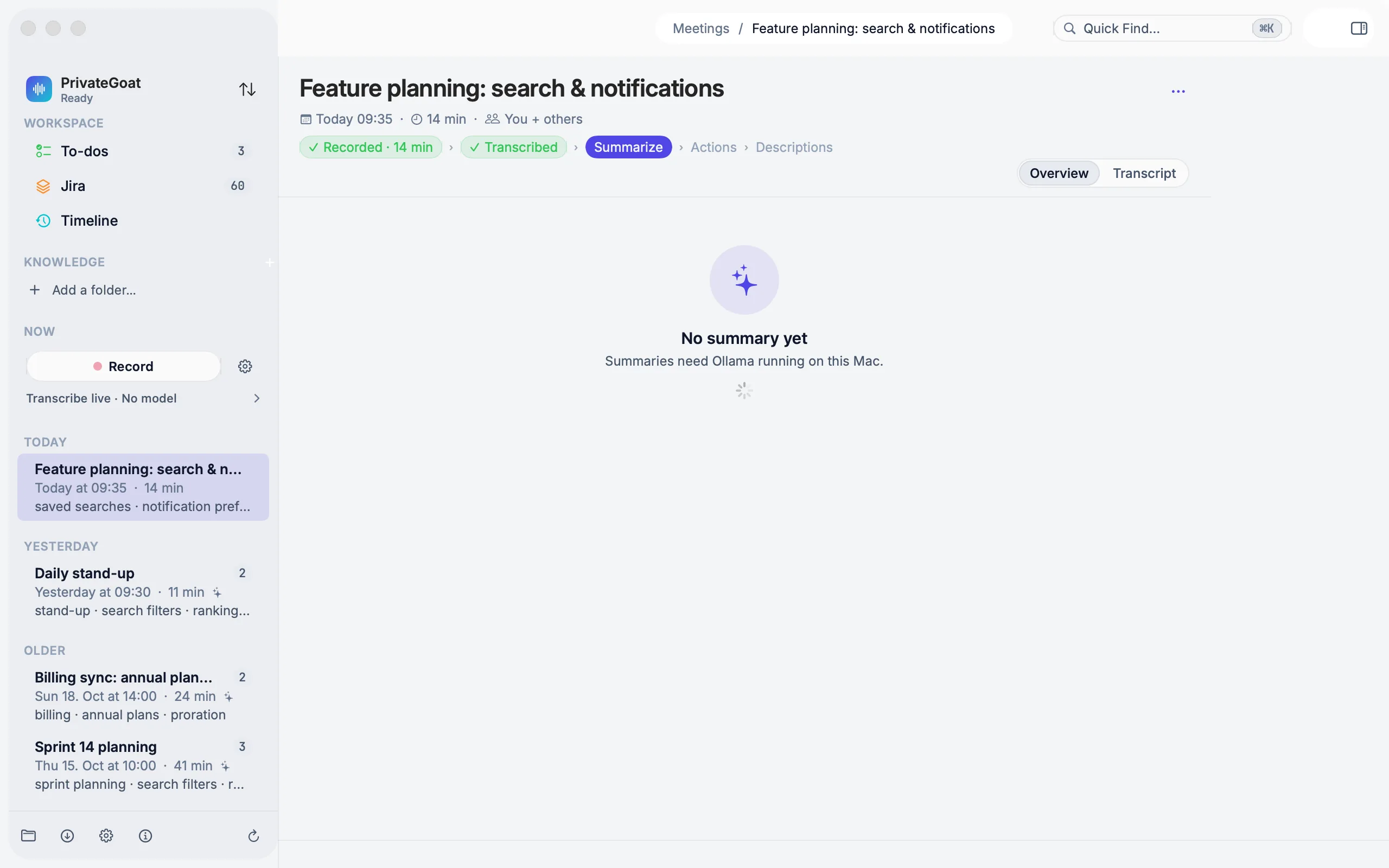
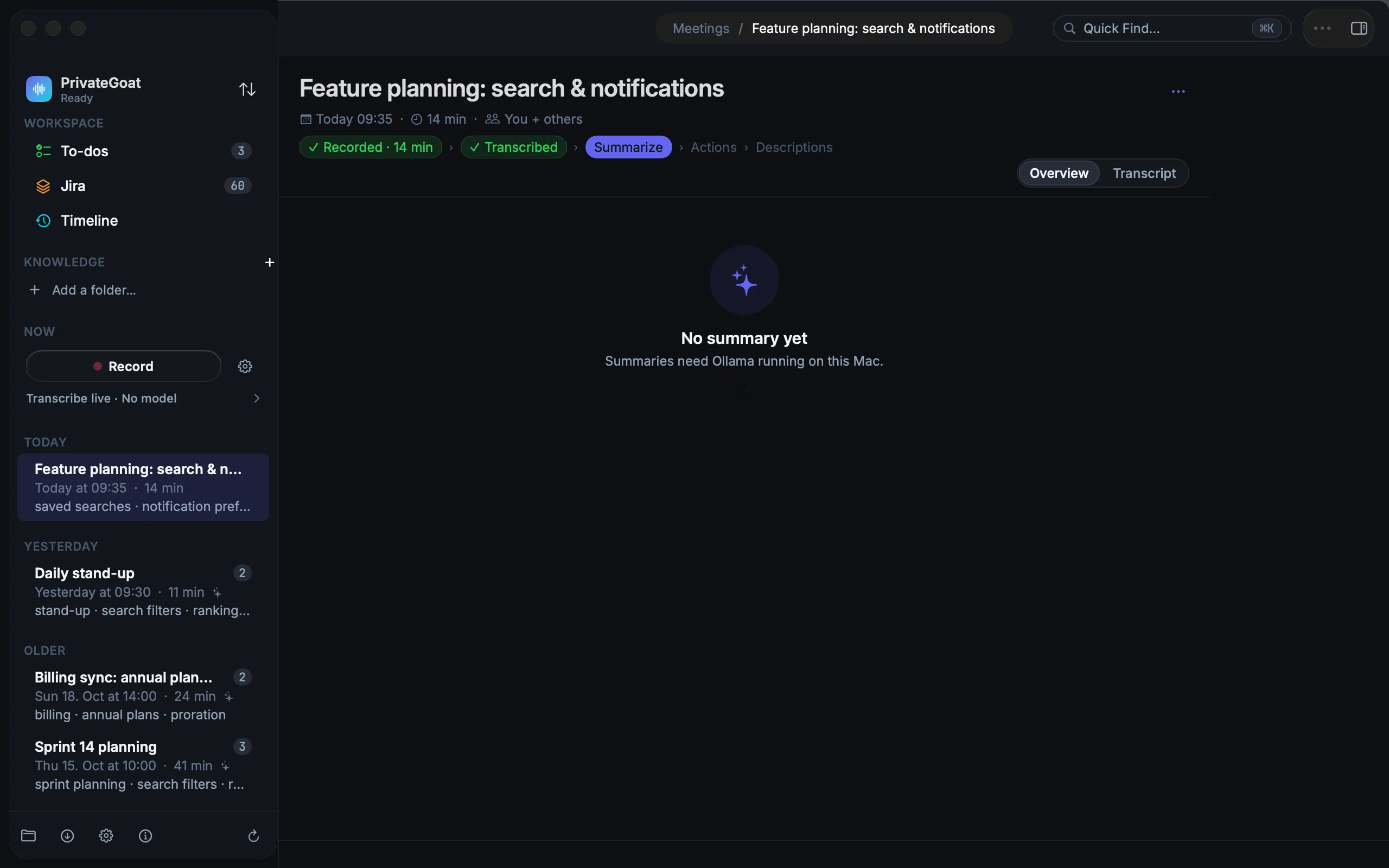
Press ⌃⌥R again, or Stop Recording if the call app has already let go of the microphone and the "Is the meeting over?" panel is up. The meeting page shows it transcribing, then a notification says the transcript and the summary are ready.
The meeting page has three things worth knowing:
- Overview — the summary first, then the action items, each with the moment in the call where it was said. See Summaries and action items.
- Transcript — the text, with playback at the top. See Transcripts and Playback and corrections.
- The pipeline row under the title — Recorded, Transcribed, Summarised, Actions, Descriptions. It shows how far the meeting has been processed.
4. Decide what happens next
An action item can become a to-do, join a group, or — if you connected Jira — go to Jira as one issue or a whole story. Nothing leaves the Mac until you choose. Start with The suggestion inbox.
Where the meeting lives
The whole meeting is a folder on disk:
~/Library/Application Support/Sonavia/Meetings/<meeting>/, with the two WAV tracks, the transcript, the
notes and the summary. Audio is never uploaded by any code path. Summaries run on the Mac by default; what can leave is on
What leaves your Mac. The details are on
What stays on your Mac.
If something is missing
Without a summary model, recording and transcription still work and the summary panel offers setup.
Without the Screen & System Audio Recording permission, the microphone still records and the status line says system audio is unavailable. A meeting recorded with Record only can be transcribed later from the meeting page.
Related
- Recording — the capture levels, the permissions, the files.
- Transcripts — models, languages and translation.
- The call prompt — the panel that asks whether to record.