The call prompt
Join a call and PrivateGoat asks whether to record. It never starts on its own, and asks once per call.
The prompt is the difference between remembering to record and not. When a call app starts using the microphone, a small panel appears under the menu bar and asks. It never starts a recording by itself, and it asks once per call.
How to use it
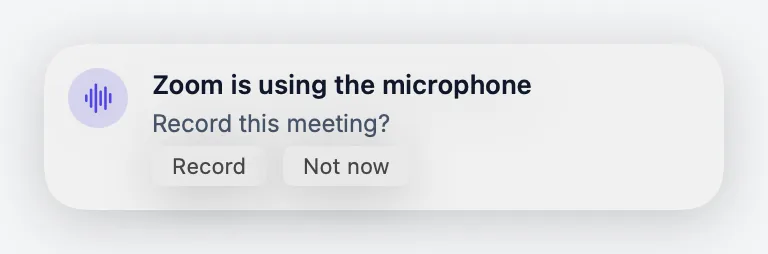
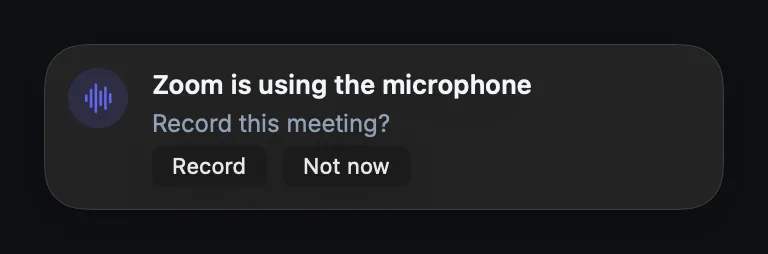
When a call starts. When a known call app — Teams, Zoom, FaceTime, Slack, Webex, Discord or a browser — holds the microphone for 3 seconds while PrivateGoat is idle, the panel says:
Teams is using the microphone — Record this meeting? ⌃⌥R works too.
- Record starts a meeting with the current capture level.
- Not now silences the prompt for that call for ten minutes.
- ⌃⌥R starts and stops a meeting at any time, with or without the panel.
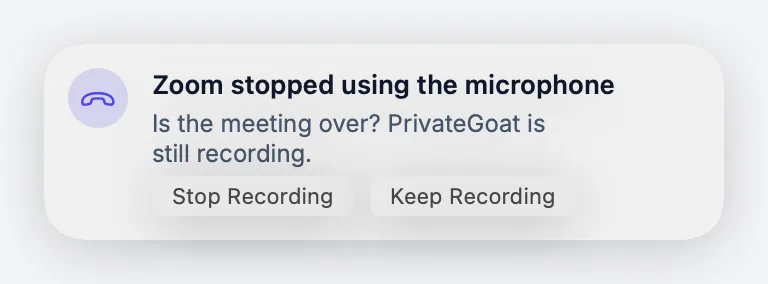
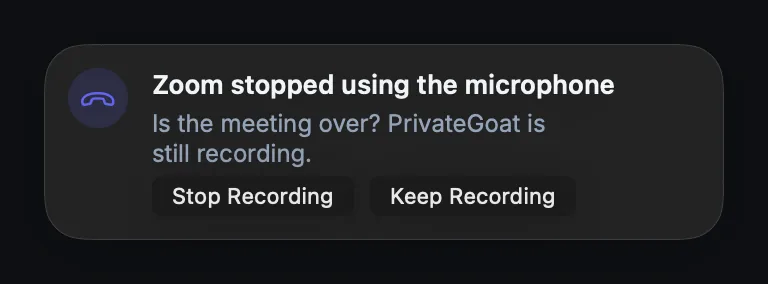
When a call ends. If the call app lets go of the microphone while a meeting is still recording, a second panel asks "Is the meeting over?" and waits for an answer:
- Stop Recording ends the meeting.
- Keep Recording leaves it running — useful when the call moves to another app.
The end panel stays until it is answered; it is not a notification that disappears. It does hide by itself if the call app takes the microphone again, or if the recording stops another way.
Settings
| Setting | Where | Default |
|---|---|---|
| Notice when a call starts | Settings → Meetings → Calls | On |
| Ask whether the meeting is over when the call ends | Settings → Meetings → Calls | On |
The end-of-call switch is disabled while Notice when a call starts is off, because both panels come from the same watcher.
What is stored
Nothing. The detector keeps its state in memory: which app held the microphone, which call was answered, and how long Not now still applies. None of it is written to disk.
What leaves your Mac
Nothing. Detection reads macOS Core Audio process objects and their "running input" flag. It needs no Screen Recording permission and no window titles.
When it is off or fails
- Notice when a call starts off: the watcher is never built, so there is no start panel and no end panel. Manual recording with ⌃⌥R is unaffected.
- An app that is not on the known list: no prompt. Start the meeting yourself.
- A call that starts while a meeting is already recording: it is consumed; there is no second prompt when that call ends.
- The panel is not seen: nothing is lost — the transcript and the audio start at the moment you press Record, and ⌃⌥R works from any app.
Related
- Recording — what the recording contains.
- Keyboard shortcuts — changing the meeting shortcut.
- Meeting history — where finished meetings go.