Summaries and action items
A summary first, then the action items, written on your Mac: decisions, open questions and the moment each action was mentioned.
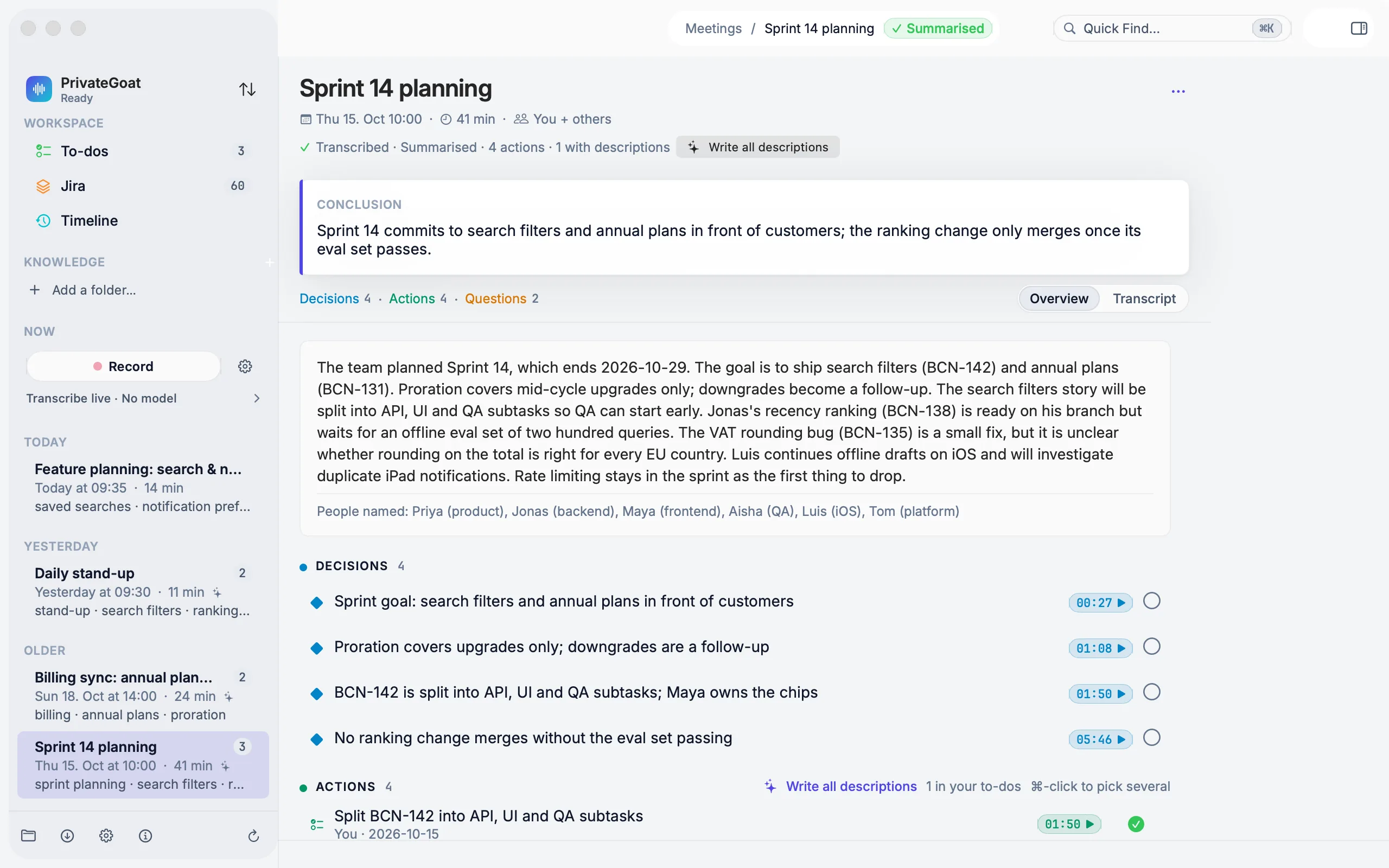
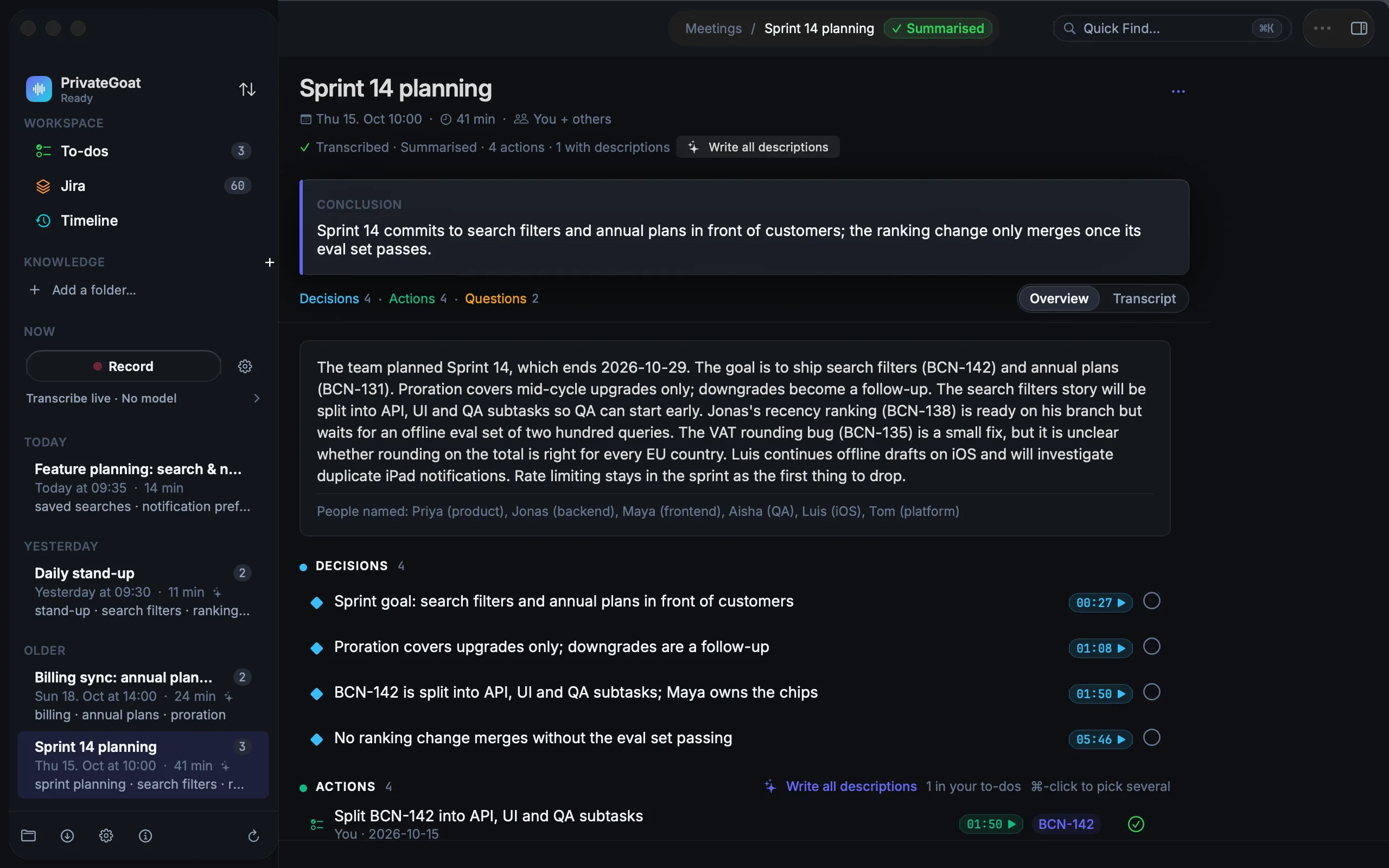
The summary turns a transcript into something you can act on: an outcome, decisions, open questions, the people named, and action items, each with the moment in the call where it was said. A local model writes it, and by default it starts by itself when the transcript is ready.
How to use it
- Open the meeting. It lands on Overview, where the summary is the first thing on the page. Right after a recording stops, you can watch it arrive: the panel beside the transcript shows the summary as it is written, with your notes under it.
- If there is no summary yet, choose Summarize now, or queue it with Queue summary; the transcript's ⋯ menu also has Summarise and Summarise Again.
- Before writing, you can shape the notes:
- Meeting type — General, Standup, Client call or Retrospective. Standup adds progress, plans and blockers; Client call adds client needs, commitments and commercial terms; Retrospective adds what went well, what did not and changes to try.
- Instructions — optional free text, for example "focus on the pricing discussion".
- Read the result. The pipeline row under the title — Recorded, Transcribed, Summarised, Actions, Descriptions — shows how far the meeting has been processed.
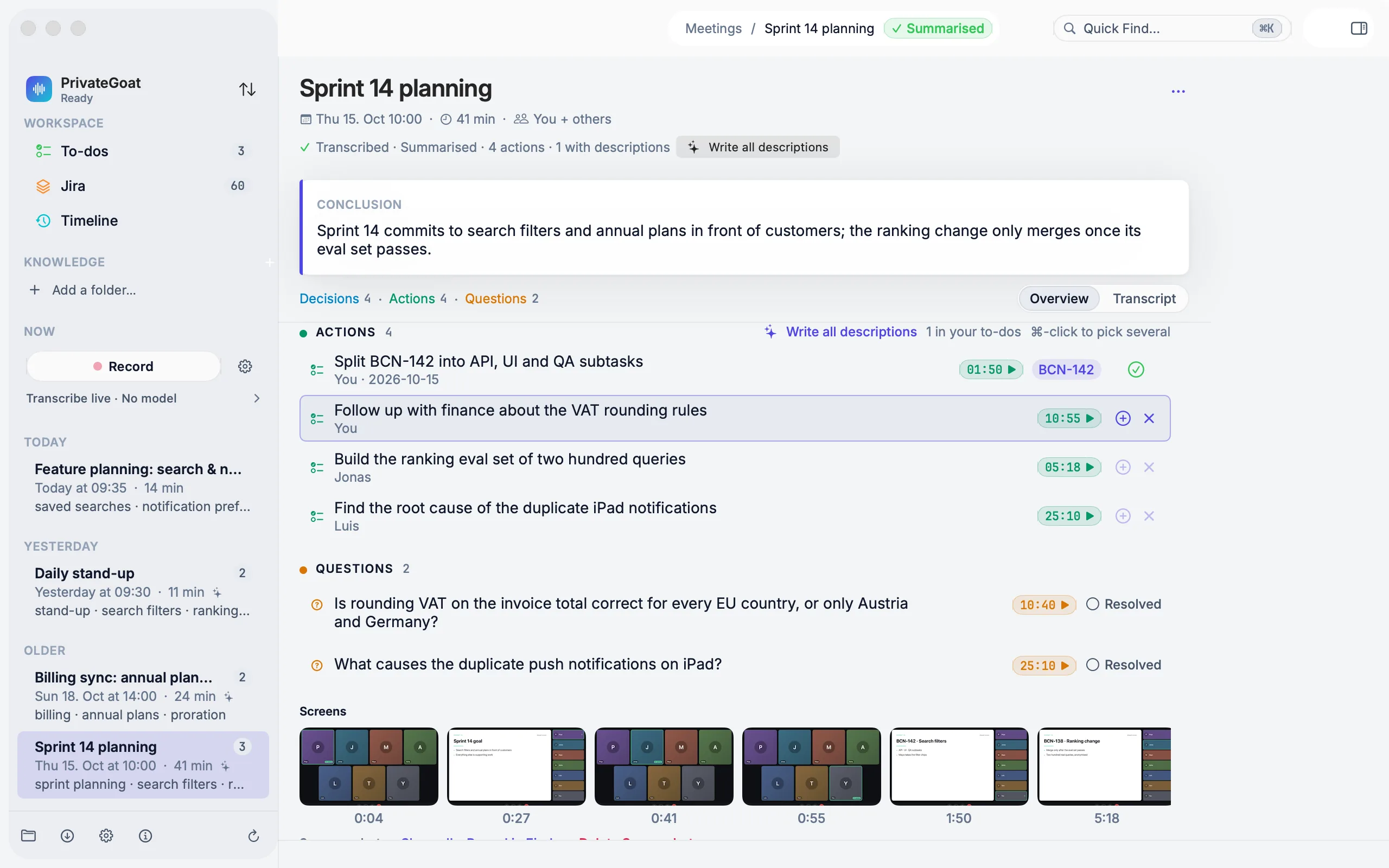
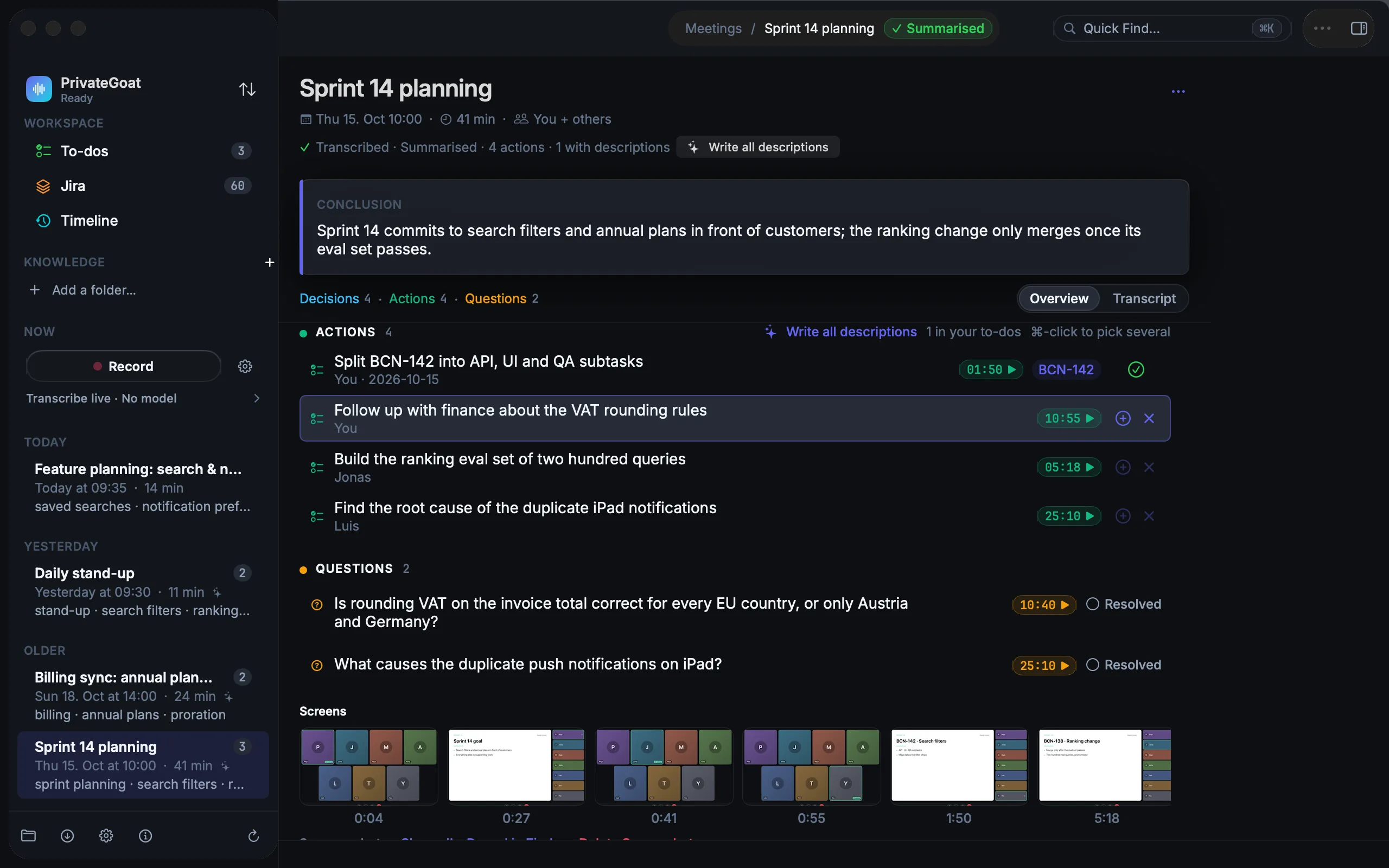
- Work the action items: add one to To-dos, group or merge several, give it a description, or send it to Jira if you connected it. See The suggestion inbox and Send to Jira.
Each action item is scored clear or possible: the clear ones come first, and the possible ones sit under Possible action items (N) in the inspector, collapsed but never dropped. The Overview's action list shows every item you have not dismissed, in the order the model wrote them.
Settings
| Setting | Where | Default |
|---|---|---|
| Summarize automatically when the transcript is ready | Settings → Meetings → After a meeting | On |
| Write action item descriptions with local AI after the summary | Settings → Meetings → After a meeting | On (one switch for the whole app) |
| Notify when a transcript or summary is ready | Settings → Meetings → After a meeting | On |
| Summary model | Settings → Meetings → Recording & models (and Settings → AI) | The local model chosen in setup |
What is stored
| File | Contents |
|---|---|
summary.md | The readable notes |
summary.json | The sections and the action proposals, including suggestions not yet added |
summary-settings.json | Meeting type and instructions |
notes.md | Your own notes |
draft-actions.md | A drafted action list, kept between launches |
A suggested action lives in summary.json until you add or dismiss it; once added, it becomes a row in
~/Library/Application Support/Sonavia/workspace.sqlite3.
What leaves your Mac
Nothing when the summary model runs on this Mac, as it does by default in Ollama on 127.0.0.1:11434. With
a summary server off this Mac, the meeting text goes there. If Allow Ollama cloud models is on
and a cloud model is selected, the transcript text used for the summary, action descriptions, to-do
descriptions or follow-up email is sent to ollama.com; the UI says so when that is the case. Transcription
never goes to the cloud. See Local models.
When it is off or fails
- No local model yet: recording and transcription still work; the summary panel offers Set up Ollama…. See Local models.
- The model does not fit in free memory: nothing is loaded. The notice names the apps using the most memory, for example "Google Chrome (12 GB)", and the summary starts by itself once enough memory is free. Summarize anyway runs it after a warning — never while recording. See Local models.
- No speech in the meeting: there is nothing to summarise.
- A recording in progress: AI work pauses, then an interrupted summary is queued again when the recording ends. The Activity button in the toolbar shows what is running and waiting, and can stop a job.
- Summarising a meeting that was never transcribed: the action is unavailable.
Related
- Follow-up email — the same notes, as a mail draft.
- Export minutes — the notes as Markdown or PDF.
- The suggestion inbox — where the action items wait for you.