Recording
Both sides of any call, as two tracks on your Mac: no bot joins and no virtual audio driver is needed.
A recording keeps two things at once: your microphone and everything the Mac plays. That second track is the other side of the call, so it works with Zoom, Teams, Google Meet, a browser tab or any other app — and nothing has to join the meeting to capture it.
How to use it
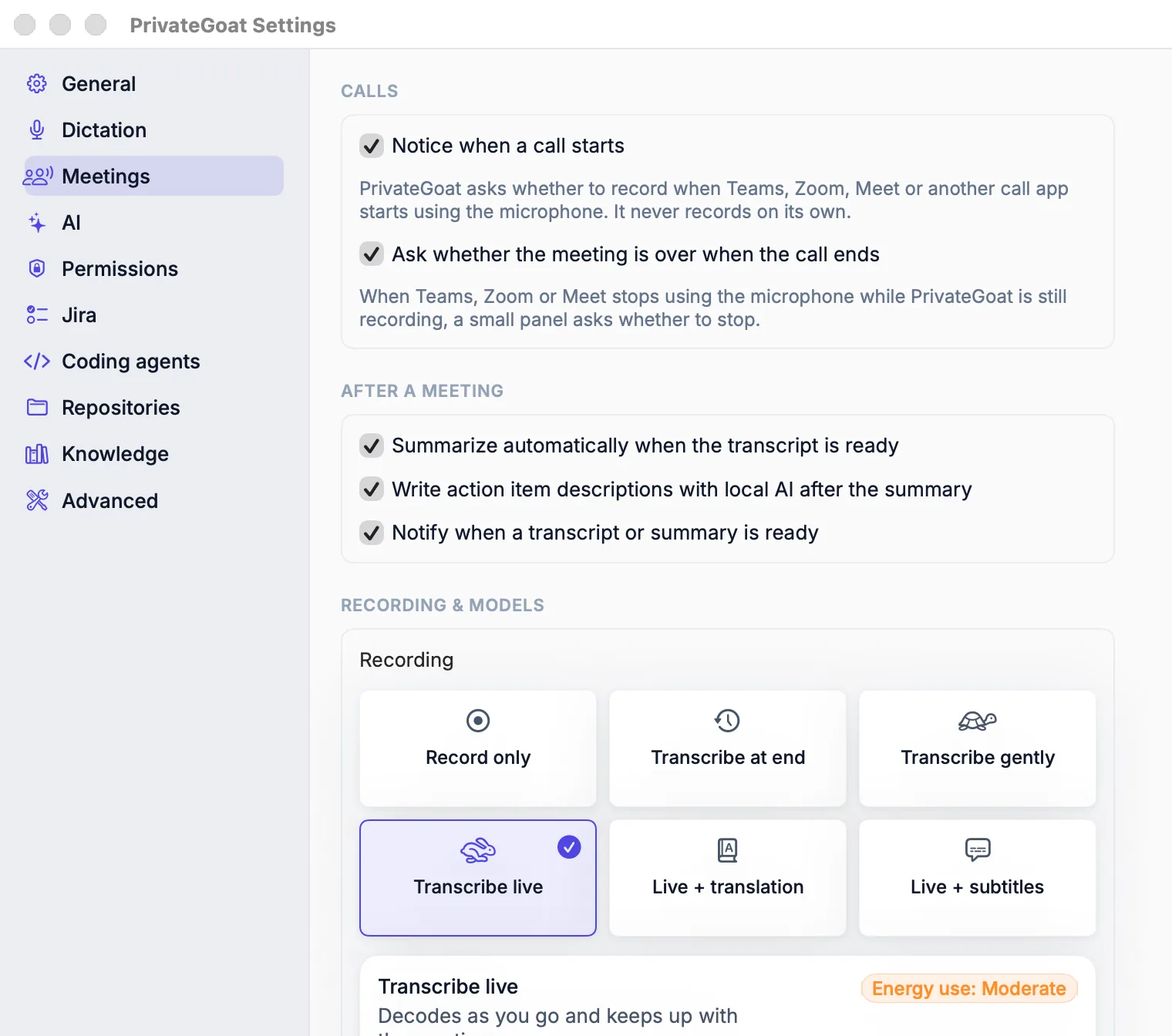
- Before the call, choose how much the meeting should do live in Settings → Meetings → Recording & models → capture level. The dial has six steps, from Record only to Live + translation + subtitles.
- Start the meeting: press ⌃⌥R from any app, choose Capture → Toggle Meeting, or use the record control on a fresh page from File → New Meeting (⌘N).
- Talk. If the capture level includes transcription, the transcript writes itself in the Transcript tab. Pause from the same control whenever you need to; while paused, both captures write silence and the pause is marked in the recording.
- Stop with the same keys. If the call app lets go of the microphone while the meeting is still recording, a panel asks "Is the meeting over?" with Stop Recording and Keep Recording.
The first recording asks for the Screen & System Audio Recording permission. It is used for the Mac's audio, and for call screenshots if you switch them on; no screen video is saved.
The six capture levels
The dial decides how much runs while the meeting is on:
| Level | What runs during the meeting |
|---|---|
| Record only | Nothing but the recording |
| Transcribe when it ends | Nothing; the whole recording is transcribed once when it ends |
| Transcribe as you go, gently | A live transcript that yields to everything else and may lag behind |
| Transcribe live | A live transcript that keeps up with the meeting (the default) |
| Live + translation | A live transcript, each line also translated into the language you choose |
| Live + translation + subtitles | The same, and the lines shown in a floating subtitle bar |
Audio is captured at every level. The level is fixed once the recording starts.
At the two translating levels, two more choices sit beside the dial: Translate and show subtitles for (Others (system audio), Me (microphone) or Both, the default) and Translate into (English by default). Apple's on-device translator translates each line when the language pair is installed in System Settings → General → Language & Region → Translation Languages; otherwise Whisper translates into English. The subtitle bar is the one Live Subtitles uses; during the meeting, the menu-bar row Live Subtitles hides or shows it.
Settings
| Setting | Where | Default |
|---|---|---|
| Capture level | Settings → Meetings → Recording & models → Recording | Transcribe live |
| Whose lines are translated, and into which language | Settings → Meetings → Recording & models, beside the dial | Both, into English |
| Meeting speech model | Settings → Meetings → Recording & models → Transcription: click an installed model card | The model chosen in the welcome tour |
| Summary model | Settings → Meetings → Recording & models → Summaries | The local model chosen in setup |
| Meetings folder | Settings → Meetings → Storage: the path, with Reveal in Finder | ~/Library/Application Support/Sonavia/Meetings, fixed |
| Notice when a call starts | Settings → Meetings → Calls | On |
| Ask whether the meeting is over | Settings → Meetings → Calls | On |
| Permissions | Settings → Permissions | Microphone, Paste (Accessibility), System audio (Screen & System Audio Recording) |
What is stored
Each meeting is one folder under ~/Library/Application Support/Sonavia/Meetings/. The two tracks are
16 kHz mono WAV.
| File | Contents |
|---|---|
audio.wav | Your microphone |
system.wav | Everything the Mac played |
meeting.md | The transcript, with the engine, model and version in a comment at the top |
meta.json | Title, dates, time zone, keywords and the enrichment model — not the capture level or the transcription model |
notes.md | Your own notes for the meeting |
summary.md, summary.json | The readable summary and its sections with action proposals |
summary-settings.json | Meeting type and instructions |
draft-actions.md | A drafted action list, kept between launches |
follow-up-email.md | The draft follow-up email, if you wrote one |
corrections.json | Corrections applied to the transcript |
screens/, screens.jsonl | Call screenshots and their capture log, if enabled |
There is no retention setting or timer: meetings are not deleted on a schedule. Moving one to the Trash takes its folder with it (see Meeting history).
What leaves your Mac
Nothing while the recording runs: both tracks are captured locally, the Mac's sound through ScreenCaptureKit, and meeting audio is never uploaded. There is no virtual audio driver (no BlackHole, Soundflower or Loopback) and no bot to invite.
Meeting text leaves on three paths, and audio never does: Share to Team Folder copies the summary and
transcript into your team folder; sending an action to Jira puts that text in an issue; and with Allow
Ollama cloud models on and a cloud model chosen, the transcript text for summaries goes to ollama.com
after each meeting, because summarising automatically is on by default. See
Local models.
When it is off or fails
- No Screen & System Audio Recording permission: the microphone still records and the status line says system audio is unavailable; the meeting finishes with the microphone track saved.
- No microphone permission: a meeting cannot capture.
- A capture error: the reason is written to the meeting's status line and the microphone file is kept where possible.
- Paused: both tracks record silence, call screenshots stop, and the pause is visible in the transcript's timeline.
Related
- The call prompt — the panel that offers to record.
- Transcripts — what happens to the audio afterwards.
- Live Subtitles — the subtitle bar, in a meeting or on its own.
- Call screenshots — optional pictures of the call window.