Call screenshots
Optional, experimental pictures of the call window kept beside the transcript, and who was speaking in Teams, Zoom and Google Meet.
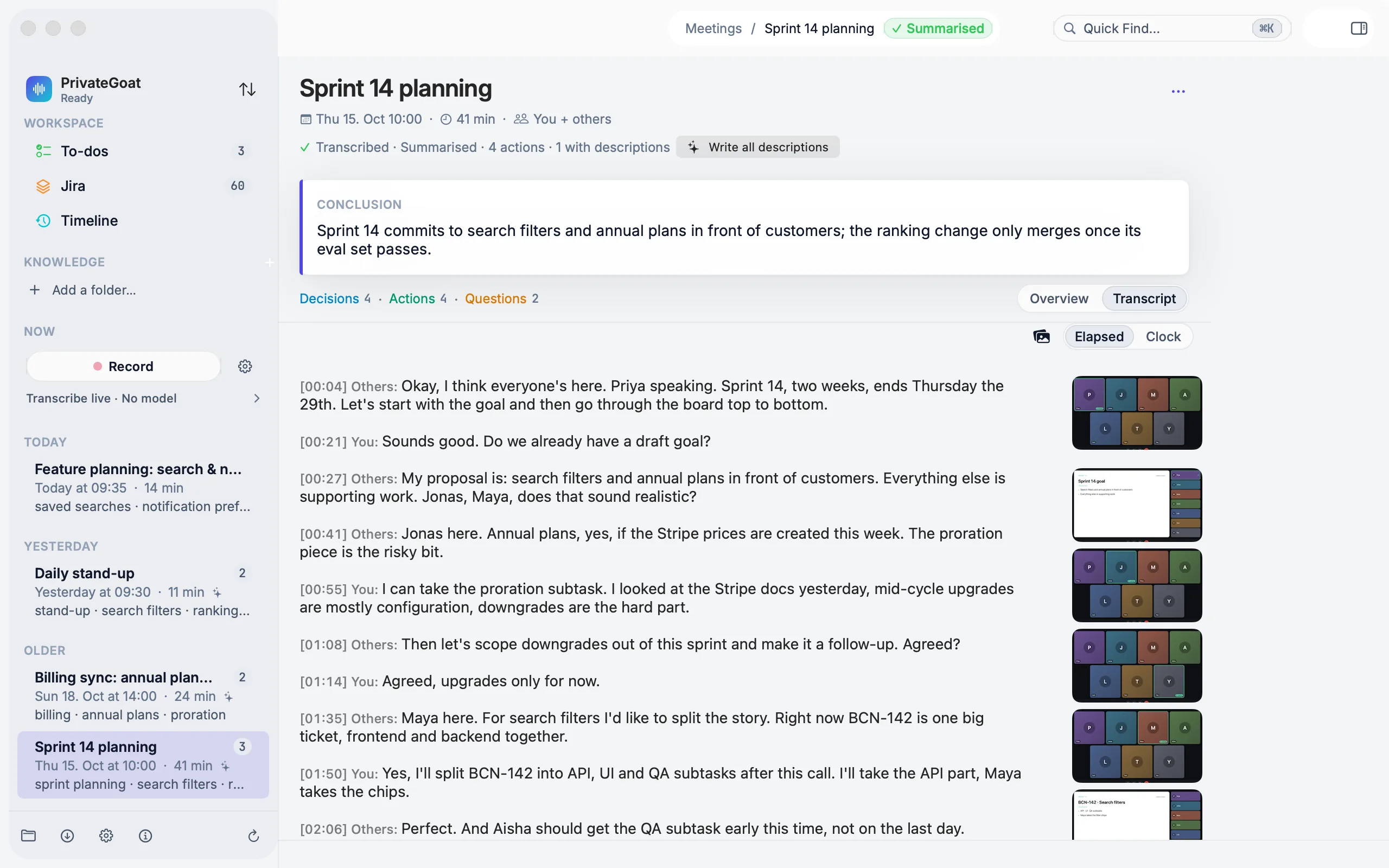
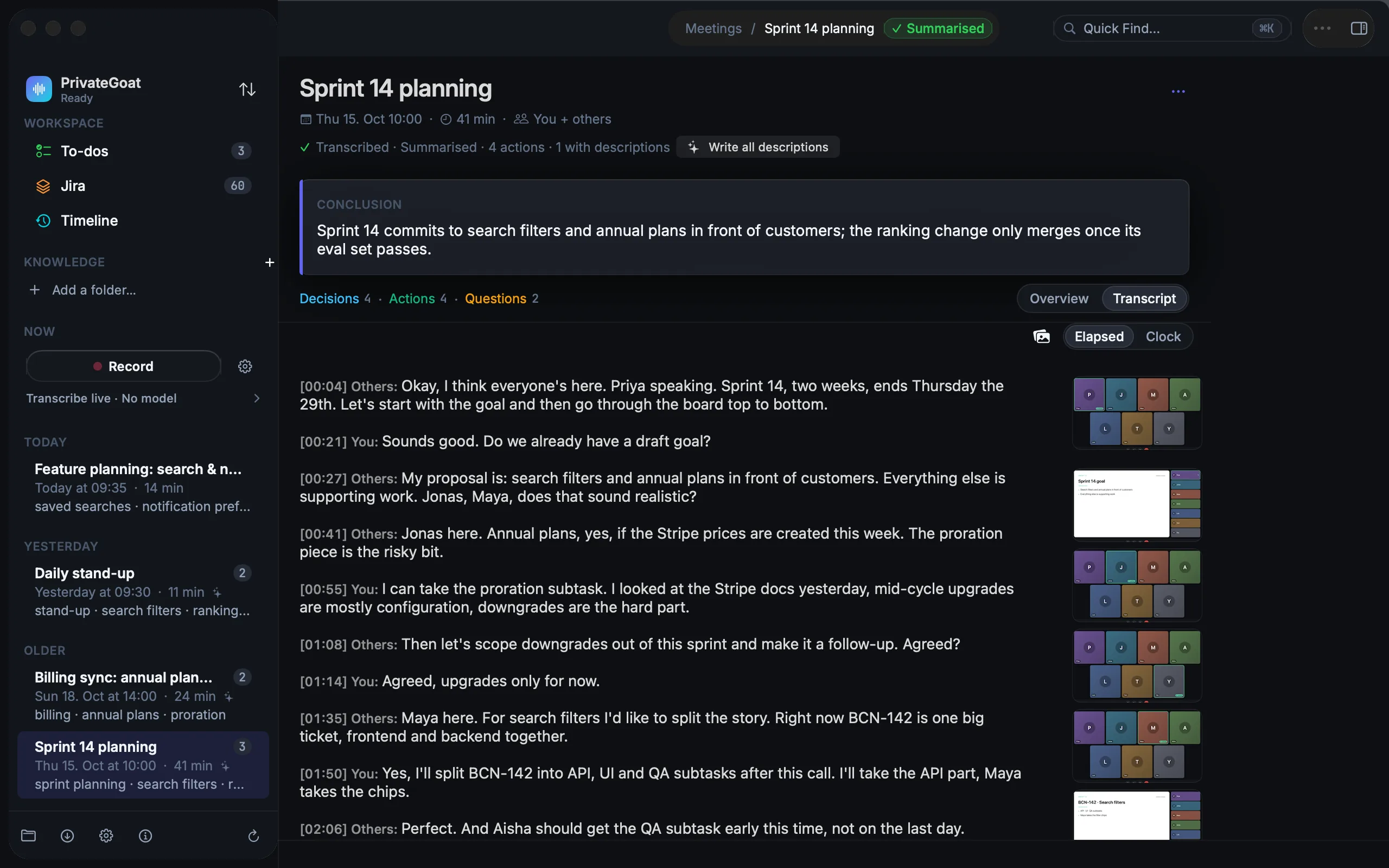
Call screenshots are an experimental aid for meetings where the slides matter: small pictures of the call window, stored in the meeting's own folder and shown beside the matching place in the transcript. In Teams, Zoom and Google Meet, with Name speakers from the call window on, the tile marked as the active speaker is read on the Mac and the name on it goes onto the transcript line (see People and speaker names).
How to use it
- Before the recording starts, switch on Settings → Meetings → Experimental → Save screenshots of the call window. The caption says it takes effect from the next recording, stays on this Mac, and is used to name speakers from the call window.
- Record the meeting as usual (see Recording).
- Open the meeting. Pictures appear in two places:
- in the Transcript, beside the matching moment;
- in a Screens strip at the end of the Overview, with Show all, Reveal in Finder and Delete Screenshots….
The recorder samples about every two seconds and keeps a picture when it has changed enough or the call window changes — and in any case at least once every 60 seconds, so a slowly changing window still has a regular anchor. Otherwise it waits at least five seconds between stored frames, and stops while the recording is paused. A meeting is capped at roughly 60 MB per hour.
Settings
| Setting | Where | Default |
|---|---|---|
| Save screenshots of the call window | Settings → Meetings → Experimental | Off |
The switch must be on before the recording starts; it is experimental and labelled as such in Settings.
What is stored
| Item | Where |
|---|---|
| Pictures | ~/Library/Application Support/Sonavia/Meetings/<meeting>/screens/t000123.4.heic |
| Capture log | ~/Library/Application Support/Sonavia/Meetings/<meeting>/screens.jsonl |
The pictures are HEIC, or JPEG if the system cannot write HEIC, long edge at most 1920 px, quality about 0.5. The log records every sample, including the ones that were rejected. Delete Screenshots… moves the pictures and their log to the Trash.
The pictures can be kept in the encrypted vault, like speaker pictures and voice profiles. With that kind on, the files sit sealed beside the meeting and open once the vault is unlocked.
What leaves your Mac
Nothing. The pictures and the capture log stay in the meeting folder; they are never shared, uploaded or sent to a model — not to the summary model, not to a cloud model.
When it is off or fails
- Off (the default): no recorder is created and nothing is captured.
- The Screen Recording permission is missing: capture fails and retries at most every 30 seconds instead of on every sample. The meeting itself is unaffected.
- An app other than Teams, Zoom or Google Meet: you get pictures, no names — only those three have a speaker-highlight profile. Zoom's speaker view and Zoom in a browser also give pictures without names; use Zoom's gallery view.
- Google Meet between words: a picture taken while nobody speaks names nobody; the next one usually does.
- A call window on another desktop: it is marked stale and never used for names.
- Paused: nothing is captured.
- A line with no name: a line the speaker highlight never named stays unnamed; Name speakers by voice can group it, and a right-click renames it (see People and speaker names).
Related
- Recording — the recording these pictures belong to.
- Transcripts — where the pictures are shown.
- Meeting history — moving a whole meeting, pictures included, to the Trash.
Words and terms
A plain list of the names, products and jargon your team uses, plus terms learned from your Jira copy and your agent chats, and corrections for dictation.
People and speaker names
Names from the call window, read on your Mac, with the People page, corrections that stick and optional remembered voices.